


Working With Rent Contracts
This chapter describes the general principles of creating and editing a rent contract. This chapter is divided into the following sections:
- Rent Price Check
- Creating a Rent Contract
- Editing a Rent Contract
- Releasing a Rent Contract
- Copying a Rent Contract
- Migrating a Rent Contract
- Canceling a Rent Contract
- Archiving a Rent Contract
- Deleting a Rent Contract
- Contract Status
- Rent Contract History
Rent Price Check
By using the rent price check, you can easily view applicable rent prices for rent classes and rent packages. Thus, you can inform your customers about the expected costs in a quick and uncomplicated way. This applies to general prices as well as customer-specific prices including discounts.
To check rent prices, please proceed as follows:
Note
To use this function, a Dummy Contact No. must be specified in the TRASER Rent Setup. You can find more information about this in the TRASER Rent Setup chapter.
- Use the quick search (ALT+Q) to find the Rent Price Check page.
- The Rent Price Check page is displayed. The dummy contact number is added automatically in the Contact No. field.
- In the Rent Class or Rent Package dropdown list, select if you want to check the rent prices for a rent class or a rent package.
- In the following Rent Class or Rent Package dropdown list, select the option for which you want to check the rent prices.
- In the table at the lower part of the page, an overview of the rent class options and rent package options including data of price, status and consumption is displayed. The following table describes the individual columns.
| Option | Description |
|---|---|
| Rent Price Description | In this column, the individual positions of the rent class or rent package will be displayed by line. |
| Price Type | This column specifies the time at which each line will be calculated. |
| Consumption Price No. | Specifies which price line will be used for rent invoicing. |
| Price Base | This column specifies the price base at which the line will be calculated. You can change this value if a different price base is added in the relevant rent class or rent package. |
| Requirement | This column specifies whether a rent class or rent price line is Mandatory, Recommended or Optional. Mandatory = The rent class or rent price line will always be included and cannot be deselected. Recommended = The use of this rent class or rent price line is recommended, but will not be added automatically. Optional = The rent class or rent price line is included automatically, but can be deselected in rent quotes, rent contracts and rent packages. |
| Quantity | This column specifies how many units of the selected line will be used for the calculation. If you change this value, the related lines in the rent class or rent package will change as well. In case of a value ≥2, the total in the Line Price Excl. VAT or Line Price Incl. VAT column will be calculated automatically. |
| Unit Price Excl. VAT or Unit Price Incl. VAT | This column specifies the rent price per position with the applicable price base. If the Prices Incl. VAT toggle switch is activated, the column header will be Unit Price Incl. VAT and the rent price will be displayed including the applicable VAT of the customer. |
| Price Code | Specifies the defined label of the price code. |
| Replacement Price | Specifies the replacement price for the rent class. This label can be set in the rent class card ( Creating a Rent Class). |
| Rent Price Exists | This column specifies whether a customer-specific rent price exists for this line. If the checkbox is selected, a customer-specific rent price exists. This price can vary from the default rent price. |
| Discount % | This column specifies the discount which is added for the line(s). |
| Line Price Excl. VAT or Line Price Incl. VAT | This column specifies the total rent price for this line. If the quantity = 1, the line price matches the unit price. If the quantity is ≥2, the applicable sum will be displayed. If the Prices Incl. VAT toggle switch is activated, the column header will be Line Price Incl. VAT and the rent price will be displayed including the applicable VAT of the customer. |
| Total Contract Line Amount Excl. VAT or Total Contract Line Amount Incl. VAT. | This column specifies the total rent price for the whole rent period for the line. If the quantity = 1, the line price matches the unit price multiplied with the contract duration. If the quantity is ≥2, the applicable sum multiplied with the contract duration will be displayed. If the Prices Incl. VAT toggle switch is activated, the column caption will be Total Line Amount Incl. VAT and the rent price will be displayed including the applicable VAT of the customer. |
| Consumption Type | This column specifies which consumption type is used for consumption-dependent invoicing in the respective line. |
| Consumption Invoice Type | This column specifies how the consumption is invoiced. |
| Usage Amount | This column specifies which consumption amount the calculation is based upon. |
| Unit of Measure Code | This column specifies the unit of measure code for this line. |
- Optional Select a customer in the Customer No. dropdown list if you want to view customer-specific prices. The table will display the rent prices of the selected customer. Varying rent prices and rent discounts for this customer will be included.
- Optional Select a different date in the Check Date field to include the price at a different time in the future or to consider limited discounts.
- Optional Activate the Prices Incl. VAT toggle switch to view the rent prices including the applicable VAT of the customer. The values in the Unit Price Excl. VAT or Unit Price Incl. VAT and Line Price Excl. VAT or Line Price Incl. VAT columns will be recalculated accordingly.
You can find information on the status of the toggle switch in the 'Toggle Switch' Table. - Optional Click on Reservation > Rent Class Reservation to create a rent class reservation with the selected parameters.
- The Edit - Rent Reservation page opens.
- Reserve the desired rent class such as described in the Create Reservation in 'Rent Reservation'.
Note
The rent class reservation function is currently only available for rent classes. Once you select the Rent Package value in Rent Class or Rent Package, the Reservation menu item is removed from the menu bar.
- Optional If you would like to create a new customer or contact directly after the rent price check, select New > New Contact or New > New Customer from the menu bar.
- Click Yes to confirm the dialog.
- A new contact or customer card is displayed.
Creating a Rent Contract
This section describes how to create a rent contract without a previous rent quote. If you want to create a rent contract from an existing rent quote, follow the instructions in the Convert Rent Quote to Rent Contract section.
To create a rent contract, please proceed as follows:
- Use the quick search (ALT+Q) to find the Rent Contracts page.
- A list of all rent contracts is displayed.
- Click New.
- An empty input screen for rent contracts opens.
Tip
A rent contract can also be created directly via a customer card. To do so, please proceed as follows:
- Use the quick search (ALT+Q) to find the Customers page.
- A list containing all customers is displayed.
- Select the customer for which you want to create a rent contract.
- Under New Document click on New Rent Contract
- An input screen for a rent contract is displayed. The Customer Name field will already be filled.
- To create a rent contract, fill in the fields of the General and Invoice Details FastTabs according to the following table.
| FastTab | Option | Description |
|---|---|---|
| General | Customer No. | Here, select the customer number for the rent contract. The Customer Name field will be filled automatically. The Rent Contract No. is created automatically (see header) and cannot be changed. The Contact field will be filled automatically. |
| Contract Start Date | Here, select the start date of the rent period by clicking on the calendar symbol. | |
| Requested Rent Period Start Date | Here, select the start date of the rent period requested by the customer by clicking on the calendar symbol. This date will be also used in connection with the Estimated Contract End Date for the calculation of the rent price. Contract End Date for the calculation of the rent price. The start date of the rent period cannot be earlier than the Contract Start Date. | |
| Estimated Contract Duration (Days) | Optional Here, you can enter the length of the rent period (at least 1 Day) If you confirm your entry using the TAB key, the Estimated Contract End Date field will be filled automatically. Enter an integer number as the value directly followed by the unit of measure, e.g., 5D equals 5 days incl. weekends and holidays or 1M equals 1 month. The values are automatically converted into Days. The following units of measure are possible: D = Day WD = Working Day W = Week M = Month Q = Quarter Y = Year |
|
| Estimated Contract End Date | Select the date for the end of the rent period by clicking on the calendar symbol. If you have already entered a value under 'Estimated Contract Duration (Days)', this field might be already filled. | |
| First Invoice Period | First Invoice Period (Days)/Minimum Rent Until (Days) | Depending on the value that is selected in the First Invoice Period Option field, you can either specify in this field after how many days the customer should receive the first invoice or how long the minimum rent period should be which is always invoiced even if all rent objects are returned ahead of time. If a number is entered here, the respective date is automatically calculated in the First Invoice Date or Minimum Rent Until Date field, based on the contract starting date. |
| First Invoice Period Option | In this field, you can select if you want to set up a period independent from the invoice frequency set in the rent contract, after which the customer will automatically receive the first invoice (First Invoice Period option), or if you want to set up a minimum rent period which will always be invoiced to the customer, even if all rent objects are returned prematurely (Minimum Rent Period option). Depending on the selected option, the fields above and below are renamed. If you leave this field empty, the set up invoice frequency of the rent contract is used. You can find more information on these options in the Setting the First Invoice Period or Setting a Minimum Rent Period sections. | |
| First Invoice Date/Minimum Rent Until Date | In this field, depending on the value selected in the First Invoice Period Option field, in you can either specify the date on which the customer should receive the first invoice or the date on which the minimum rent period ends, which is always invoiced even if all rent objects are returned prematurely. | |
| Update Customized Calendar | Here you can create a contract-specific calendar in which you can add a description to certain days or mark these days as holidays. The set up base calendar is used by default. If this option was activated in the setup, the country of the customer is used as reference for holidays. You can find more information on creating a base calendar under Setting up a Base Calendar. As an alternative, you can also deposit a calendar in the Rent Calendar field on the customer card. The entered holidays will then automatically be transferred into the customized calendar of the rent contract as soon as the customer is selected in the rent contract. |
|
| Order Type | Select the order type the rent contract will be based on. The Sale and Rental checkboxes must be activated for the selected order type to use this order type for a rent contract. You can find information about the setup of service oder types in Setting up Order Types and Order Types in Rental. |
|
| Internal Contract | Reference This toggle switch is activated if you select an applicable order type under Order Type (see Table 'Toggle Switch’ for the status of the toggle switch). The Rental and Internal Invoicing checkboxes must be activated for the order type. An internal customer must also be set up. You can find information about setting up internal customers under Setting up Internal Invoicing. You can find information on the status of the toggle switch in the 'Toggle Switch' Table. |
|
| Contract Status | Reference This field specifies the contract status. Depending on the status, different contract actions are possible. The default value of a new contract is Open. |
|
| Signature Status | Reference This field specifies the signature status. The rent order can only be started if the rent contract is signed. | |
| Open Add. Contract Exists | Reference This toggle switch is activated if an open additional contract exists. An open additional contract is not yet activated. For more information about additional contracts, see Creating an Additional Contract. You can find information on the status of the toggle switch in the 'Toggle Switch' Table. |
|
| Active Add. Contracts | Reference This field specifies how many additional contracts are activated. An activated additional contract is no longer open, but already running. For more information about additional contracts, see Creating an Additional Contract. |
|
| Service Doc. No. | This field displays the related document number if the rent contract is linked to a service order. * For more information about creating rent contracts from service orders, click here.* |
|
| Contact | Reference This field is filled automatically if you select a customer under Customer Name. This contact can be edited by clicking on the button with the three dots. | |
| Shipping | Delivery Date Prefix | In this field, you can specify if the contract objects should be received until or from a certain date or should be delivered on a fixed date. This prefix applies to the entire rent contract. This prefix can be individually adjusted per line in the contract lines. |
| Ship-to Date | In this field, you can enter the requested delivery date for the delivery of the Object Lines. | |
| Ship-to Time Prefix | In this field, you can specify if the contract objects should be received until or from a certain time. This prefix applies to the entire rent contract. This prefix can be individually adjusted per line in the contract lines. | |
| Ship-to Time | This field specifies at which time the contract objects should be received by the customer. This time applies to the entire rent contract. This time can be individually adjusted per line in the contract lines. | |
| Shipping Agent Code | In this field, you can enter a shipping agent code with which the rent object is expected to be shipped. | |
| Ship-to | From this dropdown list, select the address to which the products of the rent document will be shipped. By default, the address of the customer selected in the rent contract will be used. If you select Customer Address, you can enter the address of a different customer. The shipping address will be entered automatically in the applicable documents. If you select Alternate Shipping Address, you can choose a new shipping address. | |
| Name | Specify the name of the recipient that products of the rent document shall be shipped to. | |
| Name 2 | Enter additional name information here. | |
| Address | Specify the address that products of the rent document shall be shipped to. | |
| Address 2 | Enter additional address information here. | |
| Post Code | Enter the postal code here. If the postal code is stored in the system, the city will be entered automatically. | |
| City | Specify the city that products of the rent document shall be shipped to. | |
| Country/Region | Enter the country or region to which the products in the rent document are to be delivered. If an alternative VAT registration number is set up for this country or region, a dialog box will be displayed where you can confirm the change of the VAT registration number. | |
| Object Lines | In the table of this FastTab, the individual rent positions are displayed. This FastTab is also used to go through the individual contract phases. This area is only activated if the Contract Status = Active. For more information about contract phases, see Contract Status. |
|
| Contract Contacts | You can deposit multiple contacts in the table of this FastTab. This way, the person in charge has the option to call another contact person in case the main contact is not available. For more information on depositing contacts, click here. | |
| Line Price | Replacement Amount (Total) | This field specifies the replacement amount of all rent contract lines (Amount * Replacement Price). |
| Replacement % | In this field, enter the replacement price percentage for the entire rent contract. This value is applied to all rent class lines for which the checkbox in the Manual Price column is deactivated. | |
| Lines | This area will be described in further steps and sections below this table. You can find an overview of all the individual columns in the Rent Class Wizard section. | |
| Object Attributes | This table shows the attributes assigned to a rent class. You can find more information on assigning attributes here. If needed, select the checkbox in the Print in Delivery/Return column, if you want the attributes to be printed in the delivery/return. Clear the checkbox, if the attributes should not be printed in the delivery/return. | |
| Additional Agreements | In the table of this FastTab, the additional agreements for this rent contract are displayed. For more information on adding additional agreements, click here. | |
| Invoice Details | Invoice Frequency | Here you select the invoice frequency. The entered value from the TRASER Rent Setup will be used by default. You can find more information on setting the invoice frequency under Setting the Invoice Frequency. |
| Combine Contracts | Optional Activate this toggle switch if the contract should be invoiced as combined shipments. All contracts with the same customer for which this toggle switch is activated will be summarized in a combined invoice per invoice period. | |
| Currency Code | Optional Select the currency code for the contract from this dropdown list, if it differs from the domestic currency. | |
| Prices Incl. VAT | Optional Activate this toggle switch if the prices in the rent contract should be displayed including the statutory value-added tax. You can find information on the status of the toggle switch in the 'Toggle Switch' Table. If you are using a (service) order type where this option has already been activated, this toggle switch will be activated automatically. You can find more information on this in the chapter Order Types for Rental. |
|
| VAT Bus. Posting Group | Select the VAT posting group to be used for the business premises from this dropdown list. | |
| Payment Terms Code | Specify the number of days after which the due date of the invoice occurs. The payment discount date and payment discount amount will also be influenced by this value. Enter an integer number as the value directly followed by the unit of measure, e.g., 5D equals 5 days incl. weekends and holidays or 1M equals 1 month. The following units are possible: D = Day WD = Working Day W = Week M = Month Q = Quarter Y = Year |
|
| Shortcut Dimension 1 Code | Optional Enter the code for shortcut dimension 1 here. | |
| Shortcut Dimension 2 Code | Optional Enter the code for shortcut dimension 2 here. | |
| Skip in Stack Invoicing | Optional If you activate this toggle switch, the rent contract will be skipped in stack invoicing and you can process the final invoice manually. This is useful if e.g., the rent end date has already been posted but the final invoice has not been written yet. | |
| Skip Stack from Name | In this field, the system automatically enters who selected the skipping in the Skip in Stack Invoicing field. | |
| Invoicing | Bill-to | Select who will be invoiced from the dropdown list. The address of the customer selected in the rent contract is used by default. If you select Another Customer, a different customer will be invoiced. If you select Custom Address, you can enter a different recipient address for the customer selected in the rent contract. The customer’s address stored in the system will not be overwritten by this. |
| Foreign Trade | EU 3-Party Trade | Optional Activate this toggle switch if the transaction is related to trade with a third party within the EU. |
| Area | Optional Specify the source region of the customer or vendor for the purpose of reporting to INTRASTAT. | |
| General Terms & Conditions | Optional In the Line FastTab, select which GTC text or code should be applied to each document line number. This area can only be edited if the Contract Status = Open. For more information about creating contract or GTC texts, click Creating Contract or GTC Texts. |
- All changes are saved automatically.
- For adding entries to the rent contract, select Manage > Add Rent Class in the Lines FastTab.
You may have to select 'More Options' first to show the Manage option.
Tip
New rent contract lines can be also added in the rent contract header by clicking Contract > Add Rent Class.
- The Rent Class Wizard opens.
Adding Rent Classes or Rent Packages
Add Rent Classes or Rent Packages Wizard – Step 1
The upper section is meant for filtering rent classes or rent packages. The filtered results are displayed in the lower section of the wizard. The Location Information FastTab displays the available quantity of the item at the respective location.
To add a Rent Class, proceed as follows:
- Under Rent Class/Package, select the Rent Class option.
- Optional In the Object Type Filter for Rent Class, select the desired rent class type you want to use (Service item, Item, Resource, or Service) in order to further narrow down your search results.
- Optional The Has linked Rent Classes columns shows if there are any linked rent classes. If Yes, you can open a window which shows the linked rent classes by clicking int the field. Linked rent classes are automatically additionally added to the rent document.
- Enter the desired quantity in the Selected Quantity column. The Selected Unit of Measure field will be filled automatically.
A value ≥1,00 must be entered for the rent class to be added. - Optional If needed, change the unit of measure of the rent class via the Selected UoM by selecting a unit deposited for this rent class from the dropdown list in the corresponding line. You can find more information on depositing an alternative unit of measure for a rent class "here".
Tip
It is possible to automatically calculate the required quantity of a rent class with a defined unit of measure. To do so, click on the desired rent class line and then on UoM Calculator in the menu bar. This option is only displayed for rent classes with Object Type=Item. Enter the required values in the dialog window. The Selected quantity is then updated automatically.
To use this function, a Calculatory Unit of Measure must be deposited for the rent class. For more information, see
"Deposit.
- Optional Select an invoice calendar in the Selected Invoice Calendar column.
More information on creating invoice calendars can be found under "Set. - Once you have selected the desired quantity, click Next.
- The Second Step of the Add Rent Classes Wizard opens.
To add a Rent Package instead, proceed as follows:
- Under Rent Class/Package, select the Rent Package option.
- Select the checkbox in the Selected column to add a Rent Package.
Note
If you deactivate an Optional rent class in a rent package, the related price lines of this rent class are also deactivated and hidden.
-
Optional Select an invoice calendar in the Selected Invoice Calendar column.
More information on creating invoice calendars can be found under "Set. -
Once you have selected the desired packages, click Next.
-
The Second Step of the Add Rent Classes Wizard opens.
Add Rent Classes Wizard – Step 2
In this step you can select or deselect additional revenues for the previous selected rent classes/packages. Additional revenues are added directly to a rent class (see also "Create).
- Select the checkboxes in the Selected column for all price lines that you want to transfer to the rent contract. If needed, deselect price lines that should not be transferred to the rent contract.
Note
Mandatory price lines cannot be deselected.
Additional revenue items with Revenue Item No.=INSURANCE are automatically deselected if the customer specified in the rent contract is set up as a self-insurer. To include insurance lines in the rent contract anyway, select the checkbox for the corresponding price line and confirm the dialog window with Yes.
Tip
To change the selection of rent classes or rent packages, click Back.
To transfer the selected rent classes/packages directly to the rent document without displaying the remaining steps of the wizard, click Add. The wizard will then restart.
- Once you have selected the desired price lines, click Next.
- The Third Step of the Add Rent Classes Wizard opens.
Add Rent Classes Wizard – Step 3
In this step you can select or deselect contract components for the previously selected rent classes or rent packages. Contract components are added directly to a rent class (see also "Assign). This step is skipped if no contract components are assigned to this rent class or rent package.
- Select the checkboxes in the Selected column for all contract components that you want to transfer to the rent contract. If needed, deselect contract components that should not be transferred to the rent contract.
Note
Mandatory contract components cannot be deselected.
Tip
To change the selection of price lines, click Back.
To transfer the selected rent classes/packages directly to the rent document without displaying the remaining steps of the wizard, click Add. The wizard will then restart.
- Once you have selected the desired contract components, click Next.
- The Fourth Step of the Add Rent Classes Wizard opens.
Add Rent Classes Wizard – Step 4
In this step you can select or deselect contract texts for the previously selected rent classes or rent packages. Contract texts are added directly to a rent class (see also "Assign). This step is skipped if no contract texts are assigned to this rent class or rent package.
- Select the checkboxes in the Selected column for all contract texts that you want to transfer to the rent contract. If needed, deselect contract texts that should not be transferred to the rent contract.
Note
Mandatory contract texts cannot be deselected.
Tip
To change the selection of contract components, click Back.
To transfer the selected rent classes/packages directly to the rent document without displaying the remaining steps of the wizard, click Add. The wizard will then restart.
- Once you have selected the desired contract texts, click Next.
Note
If the rent class to be added is a linked rent class, the linked rent class can also be selected or deselected in the next step. It can only be deselected if the linked rent class is not mandatory. If the linked rent class should be added, the deposited additional revenues, contract compontents and contract texts of the linked rent class can be selected or deselected afterwards.
Linked rent classes are recognizable by an indent underneath the main rent class in the lines of the rent contract.
In addition, the checkbox in the Linked to Rent Line column is selected.
If the main rent class is later deleted from the contract lines, the linked rent class remains as an independent rent class in the contract lines.
- The Fifth Step of the Add Rent Classes Wizard opens.
Add Rent Classes Wizard – Step 5
- The Add Rent Classes Wizard has been completed.
- Click Close to close the window.
- Optional You can restart the Add Rent Classes Wizard by clicking Restart. The previous input has been transferred to the document and the First Step of the process will be displayed.
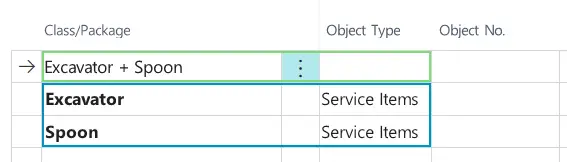
- rent packages (green) and rent classes (blue) are displayed in rent contracts as follows:
- Optional Add a discount to individual rent classes. For more information about rent discounts, click Rent Discounts.
- Optional Add additional revenues. For more information on additional revenues, click Adding Additional Revenues.
- Optional Assign a specific object number to a line. For more information on assigning specific object numbers, click Assigning Specific Object Numbers to Lines.
- Optional If necessary, you can change the unit of measure of the rent class via the Unit of Measure Code (Delivery) column in the Lines FastTab. For this, select a unit of measure deposited for this rent class from the list. This is only possible for items. You can find more information on depositing an alternative unit of measure for a rent class here.
- Optional Check the availability of selected rent classes before releasing and printing the contract. For more information on this, click Checking Ledger Entry Availability.
- Optional To open a rent class or rent package card directly from the rent contract, mark the desired rent class in the Lines FastTab and select Manage > Rent Class or Rent Package from the menu bar.
- The rent contract is now finished and can be released.
Adding Configuration Packages
Instead of rent classes, you can also add configuration packages to rent contracts. You will find more information on setting up configuration packages here.
- To add configuration packages to the rent contract, click on Manage Add Configuration in the Lines FastTab.
You may have to select 'More Options' first to show the Manage option. - The Configuration Wizard opens, displaying all created Configuration Packages.
- To select a configuration package, activate the Selected checkbox in the line of the configuration package.
- Click on Next.
- A list of all rent classes contained in the configuration package is displayed.
- Enter a quantity for the rent classes you want to add to the rent contract in the Selected Quantity field. If you want to add rent classes with a defined unit of measure and are unsure about the required quantity, you can have it calculated automatically. To do this, click UoM Calculator in the menu bar and enter the relevant values in the dialog window. The Selected Quantity is then calculated automatically and entered into the corresponding field. For more information about setting up units for a rent class, click here.
- Click on Next.
- A list containing additional revenues is displayed. You can select/deselect them as needed.
- Click on Next.
- A list containing the selected rent classes of the configuration package is displayed.
- In the header of the configuration wizard, select a price base for the configuration package in the Price Base field. For more information about the price base, see Price Base.
- In the header of the configuration wizard, enter the total price for the configuration package in the Price field.
- Enter a price percentage for each rent class in the Combined Invoice Percentage field.
- Click on Next.
- The configuration wizard is finished. Click Close to return to the rent contract.
You have successfully added a configuration package to the rent contract.
Note
If you want to make subsequent changes to the configuration package, click Manage > Update Configuration in the Lines FastTab. The Configuration Wizard is displayed
Adding Rent Objects
- To add rent objects to the rent contract, click in the Lines FastTab on Manage > Add Rent Object.
Tip
New rent contract lines can be also added in the rent contract header by clicking Contract > Add Rent Object.
- The Add Rent Objects and Resources Wizard opens.
Adding Rent Objects or Resources
Rent Object Wizard – Step 1
The upper section is meant for filtering rent objects or resources. The filtered results are displayed in the lower section of the wizard. The Location Information FastTab displays the available quantity of the object at the respective location.
- Under Object Type Filter, select whether you want to filter for Items, Service Items, Resources, or Services. If you leave the field blank, all object types will be displayed.
- If you have selected an object type, the Object No. Filter is displayed in which you search for specific object numbers, if needed.
Note
You can further narrow down the results by selecting the rent object category that you want to use in the Rent Object Category field.
You can also filter by text unter Text Search. This filter searches the description of the rent objects or resources.
Note
In addition to the filter options regarding the Object Category, Rent Object Category, and Text Search you can also filter by Attributes. Attributes are added on the (service) item card. Before you can search for attributes, you have to select an option in the Object Type Filter.
Select Rent Objects > Filter by Attributes.
A new window opens where you can enter the Attribute Code as well as the Attribute Value.
Confirm your entries with OK.
- To add a rent object, enter the desired quantity in the Selected Quantity field.
A value ≥1,00 must be entered for the rent object to be added.
You can also see the number of rent objects in stock in the Quantity Available field. When you enter a value, the system also checks whether the rent object or resource can be reserved for the period specified in the rent contract. If this is not the case, you can open the reservation page for the selected rent object or resource under Rent Objects > Object availability by date**. You can find more information on reservations under "Reservations".
- Optional If needed, change the unit of measure of the rent class via the Selected UoM by selecting a unit deposited for this rent class from the dropdown list in the corresponding line. You can find more information on depositing an alternative unit of measure for a rent class "here".
Tip
It is possible to automatically calculate the required quantity of a rent object with a defined unit of measure. To do so, click on the desired rent object line and then on UoM Calculator in the menu bar. This option is only displayed for rent objects with Object Type=Item. Enter the required values in the dialog window. The Selected quantity is then updated automatically.
To use this function, a Calculatory Unit of Measure must be deposited for the related rent class. For more information, see
"Deposit.
- Optional Select an invoice calendar in the Selected Invoice Calendar column.
For more information on invoice calendars click "Set. - Optional The Has linked Rent Classes columns shows if there are any linked rent classes. If Yes, you can open a window which shows the linked rent classes by clicking int the field. Linked rent classes are automatically additionally added to the rent document.
- Once you have selected the desired quantity, click Next.
- Step 2 of the rent object wizard is displayed.
Rent Object Wizard – Step 2
In this step you can select or deselect additional revenues for the previous selected rent objects or resources. Additional revenues are added directly to a rent class (see also "Create). If you assign this rent class to a rent object, the additional revenues will be automatically transferred to the rent object or resource.
- Select the checkboxes in the Selected column for all price lines that you want to transfer to the rent contract. If needed, deselect price lines that should not be transferred to the rent contract.
Note
Mandatory price lines cannot be deselected.
Additional revenue items with Revenue Item No.=INSURANCE are automatically deselected if the customer specified in the rent contract is set up as a self-insurer. To include insurance lines in the rent contract anyway, select the checkbox for the corresponding price line and confirm the dialog window with Yes.
Tip
To change the selection of rent objects or resoures, click Back.
To transfer the selected rent objects or resources directly to the rent document without displaying the remaining steps of the wizard, click Add. The wizard will then restart.
- Once you have selected the desired price lines, click Next.
Note
If you select a rent object with service intervals that are due before the start or during the rent period, a corresponding notification is displayed above the contract header.
For more information on service intervals, see
"Service. You can view the service intervals for a rent object by clicking on Service > Service Intervals in the menu bar of the Object lines FastTab.
- Step 3 of the rent object wizard will be displayed.
Rent Object Wizard – Step 3
In this step you can select or deselect contract components for the previously selected rent objects or resources. Contract components are added directly to a rent class (see also
"Assign). If you assign this rent class to a rent object or resource, the contract components will be automatically transferred to the rent object or resource.
If there are no contract components for this rent object or resource, this step will be skipped.
- Select the checkboxes in the Selected column for all contract components that you want to transfer to the rent contract. If needed, deselect contract components that should not be transferred to the rent contract.
Note
Mandatory contract components cannot be deselected.
Tip
To change the selection of price lines, click Back.
To transfer the selected rent objects or resources directly to the rent document without displaying the remaining steps of the wizard, click Add. The wizard will then restart.
- Once you have selected the desired contract components, click Next.
- Step 4 of the rent object wizard will be displayed.
Rent Object Wizard – Step 4
In this step you can select or deselect contract texts for the previously selected rent objects or resources. Contract texts are added directly to a rent class (see also
"Assign). If you assign this rent class to a rent object or resource, the contract texts will be automatically transferred to the rent object or resource.
If there are no contract texts for this rent object or resource, this step will be skipped.
- Select the checkboxes in the Selected column for all contract texts that you want to transfer to the rent contract. If needed, deselect contract texts that should not be transferred to the rent contract.
Note
Mandatory contract texts cannot be deselected.
Tip
To change the selection of contract components, click Back.
To transfer the selected rent objects or resources directly to the rent document without displaying the remaining steps of the wizard, click Add. The wizard will then restart.
- Once you have selected the desired contract texts, click Next.
Note
If the rent object to be added is linked to another rent object, the linked rent object can also be selected or deselected in the next step. It can only be deselected if the linked rent object is not mandatory. If the linked rent object should be added, the deposited additional revenues, contract components and contract texts of the linked rent objects can be selected or deselected afterwards.
Linked rent objects are recognizable by an indent underneath the main rent object in the lines of the rent contract.
In addition, the checkbox in the Linked to Rent Line column is selected.
If the main rent object is later deleted from the contract lines, the linked rent object remains as an independent rent object in the contract lines.
- Step 5 of the rent object wizard will be displayed.
Rent Object Wizard – Step 5
- The rent object wizard has been completed.
- Click Close to close the window.
- Optional You can also restart the wizard by clicking Restart. The previous input has been transferred to the document and you will go back to Step 1 of the rent object wizard.
- Optional If necessary, you can change the unit of measure of the rent object via the Unit of Measure Code (Delivery) column in the Lines FastTab. For this, select a unit of measure deposited for this rent class from the list. This is only possible for items. You can find more information on depositing an alternative unit of measure for a rent class here.
- Optional To open a rent object card directly from the rent contract, mark the desired rent object in the Lines FastTab and select Manage > Rent Object from the menu bar.
- The rent contract is now finished and can be released.
Adding Items via the Fast-Track Assistant
In an open rent contract, you can add items directly into the contract lines via the fast-track assistant.
To do so, please proceed as follows:
Note
If you close the fast-track wizard during the process, the current status is saved allowing you to continue where you left off. Please note that the information is stored independently of the contract and must be assigned to the correct rent contract.
- Use the quick search (ALT+Q) to find the Rent Contracts page.
- The Rent Contracts page is displayed.
- Select an open rent contract or create a new rent contract.
- The Rent Contract card is displayed.
- Click Contract > Item Fast-Track Assistant in the menu bar. Once the rent contract is signed and released, you can find this function in the Lines FastTab via Manage > Item Fast-Track Assistant.
- The Fast-Track Assistant is displayed.
- In the Search field in the Lines FastTab, you can use the object number to search for the requested object. You can also enter the object number directly into the Object No. field.
Note
If rent classes are stored for the selected item, linked mandatory rent classes are automatically added to the rent contract. For linked recommended and optional rent classes, a dialog window is displayed asking if you want to add objects from these rent classes. If you confirm the dialog window with Yes, you can add the desired Quantity of items from the linked rent classes in the following window. Confirm your selection with OK to continue the process in the fast-track wizard.
- You can see the available quantity of the object at the respective rent location in the Rent Location Information FastTab.
- Enter the quantity of the object in the Quantity column.
- Select the desired rent location in the Rent Location column.
- The other fields are filled in automatically, if necessary.
- Click OK to confirm your entries.
- The selected object as well as mandatory, linked rent classes were added to the contract lines.
- Fill in the rent contract as usual.
You have successfully added an item to a rent contract via the Fast-Track Assistant.
Tip
Alternatively, you can also import an Excel list (.xlsx) to create new objects directly in the Object Fast-Track Assistant. In the Object Fast-Track Assistant, click the Lines heading and then select Export Excel Template. An empty Excel file is saved locally on your computer. Enter the required values in the Excel file. Then, click the Lines heading again and select Import Lines from Excel to import the file.
Rent Templates
By using rent templates, you can create default rent contracts with similar parameters more quickly. This is done by predefining parameters like rent classes, invoice plans and GTCs.
To create a rent template, please proceed as follows:
Tip
All parameters can be adjusted in created rent contracts, if necessary.
- Use the quick search (ALT+Q) to find the Rent Templates page.
- A list with all rent templates is displayed.
- To create a new template, click on New.
- A new rent template mask with an automatically assigned rent template number opens.
- Under Template Description, enter a specific label for this rent template. Choose a description that distinguishes this rent template from other rent templates at a glance.
- Under Contract Start Date, enter a start date which will be applied to all rent contracts created with this template.
- Under Default Contract Duration, enter the duration which will be applied to all rent contracts created with this template.
Enter an integer number as the value directly followed by the unit of measure, e.g., 5D equals 5 days incl. weekends and holidays or 1M equals 1 month. The following units are possible: D = Day ; WD = Working Day*; W* = Week*; M* = Month ; Q = Quarter ; Y = Year. - Select the default ordert type for this template under Order Type.
- Optional Activate the Internal Contract toggle switch if the contract should be posted internally.
You can find information about setting up internal customers under Setting up Internal Invoicing.
You can find information on the status of the toggle switch in the 'Toggle Switch' Table. - To add entries to the rent template, click in the Lines FastTab on Line > Functions > Add Rent Class.
You might have to click on 'More Options' to view the Line option. - The Rent Class Wizard opens. Follow the steps of the wizard to add rent classes to the rent template.
- Check the parameters of each line after the rent class wizard is completed and optionally adjust them if needed.
| Option | Description |
|---|---|
| Combined Invoice Line | Specifies whether the line is part of a combined price. You will find further information under Rent Prices & Rent Discounts . |
| Rent Class/Rent Package | This column specifies the name of the added rent class or the added rent package. |
| Object Type | This column specifies the type of the rent class object. |
| Object No. | This column specifies the number of the rent class object. |
| Variant Code | This column specifies the variant code of the rent class object. |
| Serial No. | This column specifies the serial number of the rent class object. |
| Reservation Exists | This column specifies if a reservation exists for the rent object of this contract line. |
| Sub-Rent Document exists | This column specifies if a sub-rent document exists for the rent object of this contract line. |
| Transport Specification Exist | This column specifies if a transport specification exists for the rent object of this contract line. |
| Quantity | This column specifies the quantity of the entry in the respective line. The value of this line is multiplied with the value of the Unit Price Excl. VAT column and the result is displayed in the Line Amount Excl. VAT column. |
| Unit of Measure Code (Delivery) | This column specifies the code of the unit of measure in which the rent line will be delivered. |
| Rent Price Exists | This column specifies if there is a customer-specific price. |
| Price Description | This column specifies a description of the rent line position. |
| Hide Line in Print | Specifies if the rent line will be hidden in the print. If the checkbox is selected, the rent line will not be printed on documents. This function is only available for lines with a Variable price type. You will find further information under Rent Prices & Rent Discounts. |
| Print in Delivery/Return | If the checkbox is selected in this column, the comment lines of the rent class object are printed on rent delivery/returns. |
| Transfer Text Lines to Order | If the checkbox in this column is activated, the comment lines of the rent class object will be transferred to the rent order. |
| Attached to Rent Line | This column specifies if the rent line is linked to a rent class. If the checkbox is selected, the rent line is linked to a rent class and will be controlled by it. |
| Attached to Package Line | This column specifies if the rent line is linked to a rent package. If the checkbox is selected, the rent line is linked to a rent package and will be controlled by it. |
| Salesperson Code | This column specifies the name of the salesperson that is assigned to the customer. |
| Unit Price Excl. VAT | This column specifies the gross unit price of the rent line entry. The value of this line is multiplied with the value of the Quantity column and the result is displayed in the Line Amount Excl. VAT column. |
| Manual Price | This column specifies if the unit price was set manually. |
| No Payment Discount | Select this checkbox, if the discount shall not be applied to this line. |
| Price Code | This column specifies the applicable price code. |
| Replacement Price | This column specifies the average replacement price for the respective rent class or for the selected rent object. |
| Replacement Line Amount | This column specifies the total replacement price for this line (Amount * Replacement Price). |
| Replacement % | This column specifies what percentage of the rent object’s replacement price is applied to the rent price. |
| Unit of Measure Code (Invoice) | This column specifies the code of the unit of measure in which the rent line will be invoiced. |
| Price Type | This column specifies the price type for this rent line. You will find further information under Price Types and Definitions. |
| Termination Option Code | Specifies the code of the termination option in case of an early contract termination. |
| Has Invoice Lines | This column specifies if invoice information was entered in case the price type is set to Variable or Once. |
| Consumption Line No. | Specifies the number of the consumption line. This number will be used for invoicing to a consumption based rent contract. |
| Price Base | This column specifies the price base of the respective rent line. You can find more information on the price base under Price Base. |
| Tax Area Code | This column specifies the tax area code of the rent class object. |
| Line Discount % | This column specifies the discount percent for the respective rent line. If this column is empty, no discount is applied. The entered amount must be ≥0 and ≤100 and can not have more than 5 decimal places. The discount is calculated automatically and is included in the Line Amount Excl. VAT column. |
| Line Amount Excl. VAT | This column specifies the gross total for this rent line. The value is calculated automatically and is the sum of the Quantity and Unit Price Excl. VAT columns minus the percentage of the Line Discount % column. |
| Total Contract Line Amount Excl. VAT or Total Contract Line Amount Incl. VAT. | This column specifies the total rent price for the whole rent period for the line. If the quantity = 1, the line price matches the unit price multiplied with the contract duration. If the quantity is ≥2, the applicable sum multiplied with the contract duration will be displayed. If the Prices Incl. VAT toggle switch is activated, the column caption will be Total Line Amount Incl. VAT and the rent price will be displayed including the applicable VAT of the customer. |
| Consumption Type | This column specifies the type of consumption after which the registered consumption is invoiced. |
| Consumption Invoice Type | This column specifies the type of consumption invoice after which the registered consumption is invoiced. |
| Consumption Amount | This column specifies which quantity is invoiced if the consumption invoice type matches the invoice cycle. You can find more information about this in the chapter Contract Invoice Frequencies. |
| Manual Consumption Period Amount | This column specifies the consumption quantity of the rent period. |
| Invoice Frequency | In this column you can specify a deviating invoice frequency for this rent line. If this field is empty, the value from the Invoice Frequency dropdown list in the Invoice Details FastTab is used. |
| Invoice Calendar | This column specifies the invoice calendar for this rent line. If this field is empty, all days of the contract duration are invoiced. You can find more information on creating an invoice calendar under Setting up Base Calendar. |
| Skip Holidays | Select this checkbox if the free days in the (customized) contract lines and contract header calendars should be used for invoicing the contract line. |
| Preferred Delivery Location | In this column, you can select a preferred delivery location. This column can also be automatically filled with a default rent location if one has been defined on the User Setup Card and the Set Default Delivery Location in Contract toggle switch is activated in the TRASER Rent Setup. The default value can be adjusted later, provided that a sufficient quantity of the rent object is available at the new location. |
| Shipping Agent Code | In this column, you can enter a shipping agent code with which the rent object is expected to be delivered. |
| Shipping Time | This column specifies the time period between the shipment of items from the warehouse until delivery. |
| Delivery Date Prefix | This column specifies if the rent object should be delivered until or from a certain date or should be delivered on a fixed date. |
| Requested Delivery Date | This column specifies the requested delivery date for this rent line. This way, the rent object can be shipped to the customer on time. |
| Ship-to Time Prefix | Specifies if the rent object should be received until or from a certain time. |
| Ship-to Time | Specifies at which time the rent object should be received by the customer. |
| Requested Rent Period Start Date | This column shows the customer’s requested start date of the rent period. This date will be also used in connection with the Estimated Contract End Date for the calculation of the rent price. Contract End Date for the calculation of the rent price. The date field will be filled automatically with the date of the contract header. It can be changed separately for each main line of a rent class or a rent package. |
| Estimated Contract End Date | This column specifies the estimated end date of the rent contract. |
| Invoice From | This column specifies from when the invoicing should take place. |
| Invoice To | This column specifies by when the invoicing is due. |
| Qty. Delivered | This column specifies how many rent objects have been delivered. |
| Qty. Returned | This column specifies how many rent objects have been returned. |
| Sales Status | This column specifies if the rent object was delivered or sold and invoiced. |
| Quantity Sold (Base) | This column specifies the sold quantity after posting the sales order. The Qty. Sold field can only be filled for unit lines or rent lines that are sold after the rent period. |
| Sales Order Exists | This column specifies if a sales order exists for the rent objects from this contract line. The value is Yes until the sales order is posted. |
| GTC Code | In this column, you can specify deviating GTCs for the respective rent line. If this field is empty, the General Terms & Conditions from the General Terms & Conditions FastTab are used. For more Information about the General Terms & Conditions, click Create Contract or GTC Texts. |
| Version No. | This column specifies the version number of the GTCs of the respective rent line. |
| Invoice Status | This column specifies the invoice status of this rent contract line. |
| Deductible Amount Code | This column specifies the deductible amount of this rent contract line. |
| Tariff No. | This column specifies the tariff number. The tariff number can be specified on the service item card. |
- Your changes are saved automatically.
- Select the default invoice frequency from the Invoice Frequency dropdown menu in the Invoice Details FastTab.
- Optional Select the codes for the shortcut dimension in the Shortcut Dimension 1 Code and Shortcut Dimension 2 Code dropdown menus.
- Optional Select the desired GTC lines in the General Terms & Conditions FastTab.
For more information on GTC texts, click Create Contract or GTC Texts. - You have to release the rent template to be able to use it. To do this, click Status > Release.
Note
If you like to edit the rent template again, click Status > Reopen.
- Close the Rent Template page.
You can now use the rent template when you use the Copy Contract function.
Creating a Contract with Duration-Based Stair Pricing
You can define different prices based on the contract duration with a rent contract. This way, you can charge different rent prices after certain contract durations. Graduated rent contracts are used with price codes. To use price codes, you have to activate the advanced pricing first. For more Information about setting up price codes for individual rent classes, click here. To create a graduated rent contract, please proceed as follows:
- Use the quick search (ALT+Q) to find the Rent Contracts page.
- A list of all rent contracts is displayed.
- Open an existing rent contract or create a new one.
- Add a rent class that has a Duration Based price code. For more Information about setting up price codes for individual rent classes, click here.
- The prices defined in the price code are automatically used for the graduated rent contract.
Note
If you edit the contract duration in a graduated rent contract in the General FastTab under Estimated Contract Duration (Days), an add. Contract for this graduated rent contract is automatically created and activated.
Creating a Contract with Invoice Period-Based Stair Pricing
Using a rent contract based on the invoice period, the system calculates the next stair price based on the invoice cycle. If the rent object is not returned by the fourth day (depending on the system’s definition of the number of days in a week), the day price for the fourth day in the invoice plan is automatically adjusted so that the total for the four days corresponds to the week price. From that point on, the week price is applied for invoicing. If the rent object is not returned after three weeks, the week price for the fourth week in the invoice plan is automatically adjusted so that the total for the four weeks corresponds to the month price. From that point on, the system uses the month price until the rent object is returned. If the rent object is then returned before completing a full week or month, the day price is applied again for those days. Graduated rent contracts are used with price codes. For more Information about setting up price codes for individual rent classes, click here. To create a graduated rent contract, please proceed as follows:
Note
The invoice cycle defined by the rent contract’s invoice frequency must match the highest level of the configured price code. In the case of the Month option, this can be either the calendar month or the option Month or Month (4 weeks).
- Use the quick search (ALT+Q) to find the Rent Contracts page.
- A list of all rent contracts is displayed.
- Open an existing rent contract or create a new one.
- Add a rent class that has an Invoice Period Based price code. For more Information about setting up price codes for individual rent classes, click here.
- The prices defined in the price code are automatically used for the graduated rent contract.
Creating an Additional Contract
For further information on working with additional contracts, click here.
Editing a Rent Contract
This section describes how to edit a rent contract. To do so, please proceed as follows:
Note
The Contract Status has to be Open. If a rent contract is inactive or active and there are already existing postings, it can not be edited anymore. In this case, an additional contract may be created or a credit memo may be created.
Note
If nothing has been posted yet in the rent contract, it can be reopened. To reopen an active rent contract without any existing postings, please proceed as follows:
- Click on Status > Reopen.
- Click on Status > Reset Signature.
- Click on Print/Send > Retract Print Contract.
- Use the quick search (ALT+Q) to find the Rent Contracts page.
- A list of all rent contracts is displayed.
- Open the rent contract you want to edit.
- Make the desired changes. Some already posted actions can not be edited anymore.
Note
If the rent contract is not in edit mode:
- Click in the rent contract header on the Pen-Icon:
Editing locked](https://tsr-docs-assets.fra1.digitaloceanspaces.com/screenshots/traser_rental_365/en/rnt-rental-contracts/rnt-no-edit-mode.png)


- Your changes are saved automatically.
- Release the contract again by following the steps in Create Rent Contract.
- Close the Rent Contracts page.
Deleting Lines
Note
Lines can only be deleted in a rent contract with Contract Status = Open. Already posted lines can not be deleted.
- Use the quick search (ALT+Q) to find the Rent Contracts page.
- A list of all rent contracts is displayed.
- Open the rent contract you want to edit.
- To delete a line, click on it and afterwards on Manage > Delete Line.
oder
Click on the three vertical dots next to the Rent Class/Rent Package column in the selected line and click on Delete Line. - This line is deleted.
- Close the Rent Contracts page.
Releasing a Rent Contract
- To publish the rent contract, click Status > Release.
Tip
When a rent contract is released, a check of the customer’s credit limit is performed. If the customer has an overdue balance, a message will be displayed above the contract header. If you select More Details next to this message, you will receive more information on the current balance and credit limit of the customer. Please consider that you have to activate the respective notification on the My Notifications page first in order to receive this message. You can also set up that rent contracts can only be released if the selected payment method is a Cash Payment. You will find further information on setting up payment methods in the Setting up Payment Methods sections. If you select the Ship Only Against Cash Payment option in the Blocked field on the customer card of the selected customer, a payment method with an activated Cash Payment option must be selected in rent contracts so that the contract can be released.
- The Contract Status will be changed to Inactive.
- To print the rent contract, click on Print/Send > Print Contract....
- Click on Send To..., then select the desired file format in the dialog window and click on OK to save a local copy of the rent contract.
oder
Click on Print to open a PDF file of the rent contract in a new browser window.
oder
Click on Preview & Close to open a preview file of the rent contract in a pop-up window.
oder
Click on Cancel to cancel the printing process.
Tip
If you want to print an overview of all rent contract objects that remain at the location of the customer, click on Print Remaining Qty. Overview under Print/Send in the menu bar.
- If you clicked on Send To..., Print or Preview, the contract can now be signed.
- To sign the rent contract, click Status > Set Signature.
- The Contract Status will be changed to Active.
- The rent contract is now created and signed.
Tip
You can also add a customer signature via the Signpad integration at this point. To do so, click on Actions > Status > Add Customer Signature in the menu bar of the rent contract.
- Scroll down to the end of the rent contract. The Object Lines are displayed in a new list and can be edited by clicking the Manage button in the menu bar, e.g., to manage the next status (see Flow) or Transferring Rent Objects Between Rent Locations to join lines.
Tip
To view all not archived rent contracts of a certain customer, click on Navigate > Rent Contracts in the customer card.
A list with all not archived rent contracts for this customer is displayed.
Copying a Rent Contract
It is possible to create a new contract with data from a previous quote, contract or rent template in just a few steps. To do so, please proceed as follows:
- Use the quick search (ALT+Q) to find the Rent Contracts page.
- A list of all rent contracts is displayed.
- Create a new contract by clicking New in the header.
- Under the General FastTab, fill in the fields Customer Name, Contract Start Date, if necessary Estimated Contract Duration (Days), Estimated Contract End Date and Order Type.
For more information about certain fields, see Creating a Rent Contract.
Warning!
Do not add rent classes!
- Click at the header of the rent contract on Contract > Copy.
- The Select Document pop-up window opens.
- In the Copy From Document Type dropdown list in the Options FastTab, select if you want to copy a quote, contract or contract template (Rent Template).
- In the Document No. line, select the quote, contract, or rent template number you want to copy.
- Optional Activate the Copy Header toggle switch if you want to keep the header in the copied document. Otherwise, the header is empty.
You can find information on the status of the toggle switch in the 'Toggle Switch' Table. - Optional Activate the toggle switch Recalculate Prices if you want to recalculate the prices of the rent price lines in the copied document. Otherwise, the prices from the copied document remain the same.
You can find information on the status of the toggle switch in the 'Toggle Switch' Table.
Note
The Extended FastTab is only relevant for advanced or technical users like administrators and can be ignored when copying a document.
- Confirm the input by clicking OK.
- All parameters are now copied to the new rent contract (the data from the first step will also be overwritten).
- You can now edit or process the rent contract. For more information, click Releasing a Rent Contract.
Note
If you copy an already Released and Signed contract, the status of the new contract will be reset to Open.
Migrating a Rent Contract
You can migrate a delivered rent object to a new rent contract. It will be registered as Returned in the old rent contract and imported into the new rent contract with the Delivered status including all parameters. The old rent contract will be set to the Final Settlement status and can no longer be edited.
Note
To enable migrating rent contracts, the Migrate Objects toggle switch must be activated in the user setup card on the User Setup page. Additionally, a number series for Migration Document Nos. must be assigned on the TRASER Rent Setup page.
Warning!
Once a rent object has been migrated, the old rent contract can no longer be edited via Process Next Status, but only via the migration function in the new rent contract.
Contract migration consists of three steps:
- Preparing migration
- Releasing a newly created rent contract
- Finishing migration
To migrate a contract, please proceed as follows:
- Open the rent contract whose contract objects you want to migrate.
- Make sure that all rent objects of the relevant rent contract have been (at least partially) delivered.
Note
If consumption lines exist, make sure that they are up-to-date. The latest registered consumption value will be imported into the new rent contract. For more information on registering consumption values, click here.
- Select Actions > Functions > Contract Migration > Migrate to New Contract from the menu bar.
- The Rent Contract Wizard opens.
- Enter the Customer No. here. The remaining fields will be filled in automatically. The Order Type field can still be edited.
- Fill in the Requested Rent Period Start Date and Estimated Contract End Date fields. The Estimated Contract Duration field will be filled automatically.
- Confirm your entries with OK.
- Select Yes, if you want to open the newly created rent contract.
Tip
Optional: You can also create a new rent contract and import the desired data from the old rent contract into the newly created rent contract. To do so, please proceed as follows:
- Select Actions > Functions > Contract Migration > Prepare Migration from the menu bar.
- The Contract Selection page is displayed where you can select the desired rent contract including the lines for the migration. Lines that have already been returned cannot be selected.
- The selected information will be imported into the newly created rent contract.
- Prepare the newly created rent contract and release it afterwards.
- Select Actions > Functions > Contract Migration > Migrate Object from the menu bar.
Warning!
This action cannot be undone!
- The contract objects will be migrated and are set to the Delivered status.
- The contract objects in the old rent contract are set to the Returned status and the old rent contract is set to the Final Settlement status.
Note
Current rent breaks have not been transferred to the new rent contract. Future rent breaks have been deleted and must be entered again. For more information on rent break requests, click here.
- The contract migration is now complete.
Canceling a Rent Contract
This section describes how to cancel a rent contract. To do so, please proceed as follows:
Warning!
A canceled rent contract cannot be reactivated. Make sure that you really want to cancel this rent contract.
Note
The Contract Status must be Active to cancel a rent contract. The Signature Status must be Signed.
- Use the quick search (ALT+Q) to find the Rent Contracts page.
- A list of all rent contracts is displayed.
- Select the rent contract which is supposed to be canceled.
- Click in Actions > Functions on Cancel Contract.
- Click Yes to confirm the dialog.
- The rent contract is canceled. The Contract Status is now Canceled.
- The canceled rent contract will still be in the list of all rent contracts, but cannot be used again.
- To remove the canceled rent contract from the list of all rent contracts, you must archive this rent contract. You will find more information on this under Archiving a Rent Contract.
- Close the Rent Contracts page.
Archiving a Rent Contract
This section describes how to archive a rent contract to remove it from the list of all rent contracts. To do so, please proceed as follows:
Note
The Contract Status must be 'Closed' or 'Canceled' to archive a rent contract.
- Use the quick search (ALT+Q) to find the Rent Contracts page.
- A list of all rent contracts is displayed.
- Select the rent contract which is supposed to be archived.
- Click in Actions > Functions on Archive Document.
- The rent contract window is closed and the list with all rent contracts is displayed.
- The archived rent contract can be viewed in the Rent Archive.
- Close the Rent Contracts page.
Restoring an Archived Rent Contract
This section describes how you can restore a rent contract. This is useful if a customer requests the same rent contract again or if the rent contract shall be used as a template. In this case, restoring does not mean that the archived rent contract is available again after executing this function. Instead, this function creates a new rent contract based on the data of the archived rent contract. To restore a rent contract, please proceed as follows:
- Use the quick search (ALT+Q) to find the Rent Archive page.
- A list with all archived rent documents is displayed.
- Select the rent contract based on which you want to create a new document.
- Select New > Restore from the menu bar.
- The Restore Document window opens.
- The Customer Name and Contact No. fields will be prefilled with the data from the archived rent contract. You can also edit these fields and enter e.g., a different customer.
- Fill in the Contract Start Date, Estimated Contract Start Date (Days) and Estimated Contract End Date fields.
- Activate the Recalculate Prices toggle switch if the prices should be recalculated in the new rent contract. If you deactivate the toggle switch, the prices from the archived rent contract will be transferred into the new rent contract.
- Confirm your entries with OK.
- A dialog window is displayed, asking whether you want to open the newly created rent contract. Click Yes to open the rent contract. Select No if you want to stay on the Rent Archive page.
Deleting a Rent Contract
This section describes how to delete a rent contract. To do so, please proceed as follows:
Warning!
A deleted rent contract cannot be reactivated. Please check if you want to delete the rent contract or if you want to archive it instead. Archived rent contracts can be reused from the Rent Archive.
In some cases it is sufficient to edit or pause a rent contract.
Note
The Contract Status must be Open to delete a rent contract.
In addition, there must not be any postings or invoices.
- Use the quick search (ALT+Q) to find the Rent Contracts page.
- A list of all rent contracts is displayed.
- Select the rent contract to be deleted.
- Click on the garbage can icon in the rent contract header.
- Click Yes to confirm the dialog.
- The rent contract is now deleted.
- Close the Rent Contracts page.
Contract Status
A rent contract goes through multiple contract statuses during processing. The current status can be viewed in the General FastTab of the rent contract. The contract status will be set automatically by the system. The following subsection describes which contract statuses exist and when they are set by the system.
| Contract Status | Description |
|---|---|
| Open | When the rent contract is created, it receives the Open status. |
| Inactive | Once a rent contract is released but not signed yet, it receives the Inactive status. |
| Active | Once a rent contract is signed, it receives the Active status. The signature also activates the contract lines in which the contract objects are processed in. The Invoice Plan of this rent contract is now also available. |
| Final Settlement | Once all contract objects are returned in the contract numbers, the rent contract receives the Final Settlement status. This means there are still open revenue lines for the final invoicing. |
| Closed | Once the final invoice for this rent contract is posted, the rent contract receives the Closed status. This rent contract is now closed. |
Document Status
A rent contract goes through multiple document statuses during processing. The current status can be viewed in the General FastTab of the rent contract. The document status will be set automatically by the system. The following subsection describes which document statuses exist and when they are set.
| Document Status | Description |
|---|---|
| Open | Once the rent contract is created, it receives the Open document status. |
| Authorized | Once a rent contract is released, it receives the Released document status. |
Signature Status
A rent contract goes through multiple signature statuses during processing. The current status can be viewed in the General FastTab of the rent contract. The signature status will be set automatically by the system. The following subsection describes which signature statuses exist and when they are set.
| Signature Status | Description |
|---|---|
| Open | Once the rent contract is created, it receives the Open signature status. |
| Empty | Once a rent contract is released, the signature status will be Empty. |
| Signed | Once a rent contract is signed, it receives the Signed status. |
Rent Contract History
In the rent contract history, all activities during the processing of the rent contract are recorded, e.g., deliveries, returns, creation of additional contracts or repairs. This is particularly helpful for an overview in mass rental. To view the rent contract history, please proceed as follows:
- Open a rent contract.
- Select Related > History > Contract History from the menu bar.
You may have to select ‘More Options’ first to view the Related option. - The Contract History Overview page is displayed.
Bold lines show the assets of the rent contract, for example when an item or service item was added to the rent contract.
More columns might be shown via the Personalize function.
Über die Funktion Beleg öffnen in der Menüleiste kann der zugehörige Beleg der jeweiligen Zeile aufgerufen werden.
'Toggle Switch' Table
The following table describes the toggle switch status for this chapter.
| Icon | Status | Description |
|---|---|---|
  |
Deactivated | The option is not activated and the related function not available. |
  |
Active | The option is activated and the related function available. |