


Filebox
With the Filebox, files can be stored and archived in different areas of Microsoft Dynamics 365 Business Central. This requires the Filebox to be set up in the
Setup.
A Filebox category must be assigned to each file that is stored in the Filebox. Categories can be created in the
Filebox Categories and specify the category code with which the stored file is created in the connected DMS.
Files can be moved to the Filebox via drag & drop or via Choose files to upload. In the file list of the Filebox, all stored files for the selected record can be viewed and downloaded.
Note
The Filebox download can be activated in the Setup.
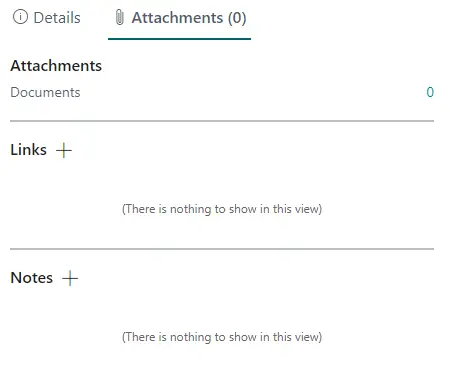
In addition to files, other attachments can also be uploaded to the Filebox. However, no
Filebox Export Entries are created for links or notes.
Files can be uploaded to the Filebox in simple or advanced mode.
Note
The mode can be selected in the Setup.
 |
 |
Simple Mode
In simple mode, a Filebox category must be assigned to a stored file. In addition, a description of the file can be added.

Advanced Mode
In advanced mode, a Filebox category must be assigned to a stored file. In addition, a description of the file can be added.
Furthermore,
Filebox Category Attributes can be defined for each Filebox category. A value must be entered for attributes marked in red, and a value can be entered for other attributes.
Filebox Export Values are also created for the attribute values.
Note
For the ELO interface, the Special Field Name from the Filebox Export Values is used for the export to the ELO DMS.
