


Environment Preparation
Note
For these setups, you must have already created a Fabric capacity and an app registration. For more information, see Deployment of Azure Resources.
Before you can use Aptean Equipment BI Connect, you must prepare the Power BI environment. This includes activating a tenant setting, creating a Fabric workspace, and creating a mirrored database in which the data from Microsoft Dynamics 365 Business Central is provided. This chapter describes all necessary steps and is divided into the following sections:
- Setting up Tenant Settings
- Creating a Fabric Workspace
- Granting Access Rights
- Creating a Mirrored Database
Setting up Tenant Settings
Before you can create a Fabric workspace, a tenant setting that allows service principals to access the public Fabric APIs must be activated. To do so, proceed as follows:
- Open the Power BI Overview Page and log in with an administrator account.
- Click the gear icon in the top right corner and select Admin portal.
- Select Tenant settings in the left navigation pane.
- Find the Service principals can call Fabric public APIs section and activate the Enabled toggle switch.
- Under Apply to, select The entire organization.
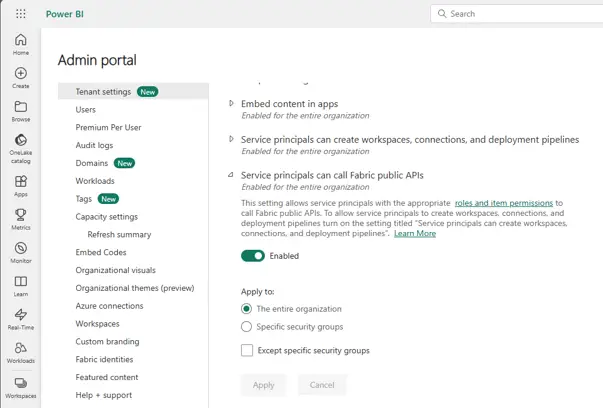
- Click on Apply.
The tenant setting is applied. Service principals can now access the public Fabric APIs. The next section explains how to create a Fabric workspace.
Creating a Fabric Workspace
In a Fabric workspace, you manage all items you need for data analysis, e.g., the mirrored database from Microsoft Dynamics 365 Business Central. To create one, proceed as follows:
- Click on Workspaces in the left navigation pane.
- Click on + New workspace.
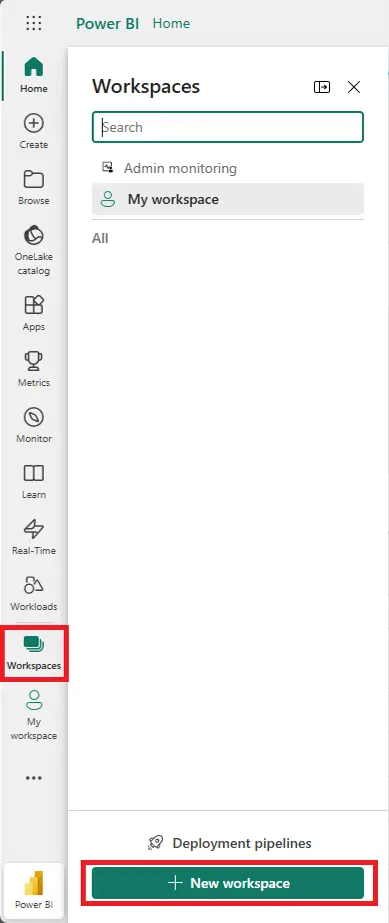
- In the Name field, enter a meaningful name for the workspace.
- Open the Advanced section.
- Under License mode, select Fabric capacity.
- In the Capacity field, select the Fabric capacity you created earlier.
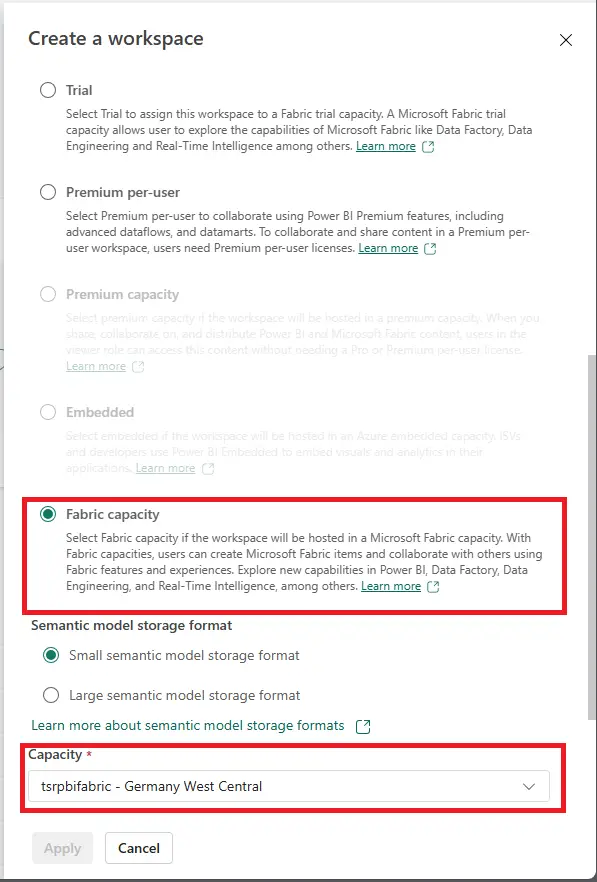
- Click on Apply.
The Fabric workspace is created. The next section explains how to grant the app registration access to the workspace.
Granting Access Rights
To allow Microsoft Dynamics 365 Business Central to access the Fabric workspace through the app registration, you must add the corresponding service principal as a member of the workspace. To do so, proceed as follows:
- Click on Manage access in the menu bar of the Fabric workspace.
- Click on Add people or groups.
- Search for the name of your previously created app registration and select the displayed service principal.
- In the dropdown list next to the service principal, select the Contributor role.
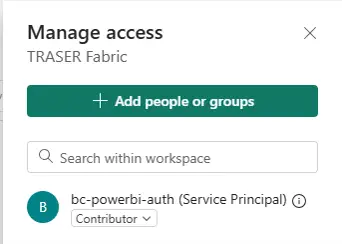
- Confirm your selection.
The app registration is added to the Fabric workspace as a Contributor. The next section explains how to create a mirrored database in the workspace.
Creating a Mirrored Database
The mirrored database (Mirrored database) provides the data exported from Microsoft Dynamics 365 Business Central for analysis in Power BI. To create one, proceed as follows:
- Open the previously created Fabric workspace.
- Click on + New item.
- From the list of available items, select the Mirrored Database tile.
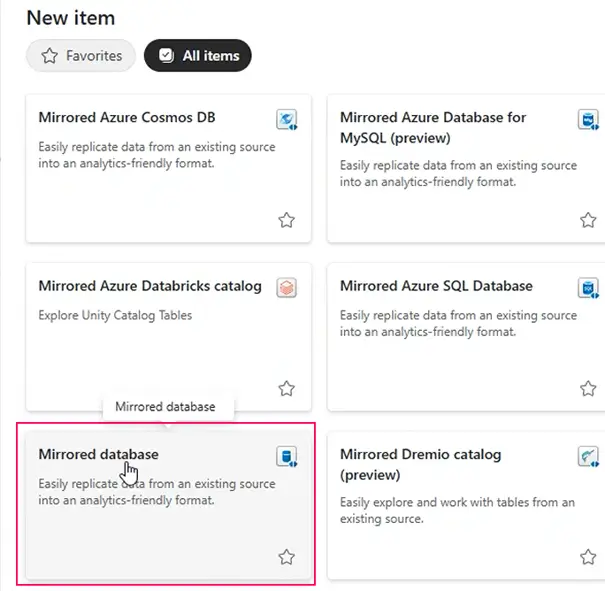
- In the Name field, enter the value BC_Data.
- Click on Create.
The mirrored database is created.
Important
Copy the Landing Zone of the newly created mirrored database or note it down. You will need this value for a later configuration step.
You have successfully prepared the Power BI environment for Aptean Equipment BI Connect.