Working with Documents
This chapter covers working with documents in Aptean Equipment DMS x Continia Document Capture. It is divided into the following sections:
- Automatic Item Recognition
- Working with Vendor Associations
- Automatic Creation of New Items from Catalog
- Viewing Invoice Matching Differences
Automatic Item Recognition
When a document is captured, the system reads the item numbers from the vendor's invoice. This app adds an intelligent lookup that tries to match those numbers to your Microsoft Dynamics Business Central items:
- It first checks whether there is an existing translation rule for the captured number.
- If not, it looks up the vendor's Item References to find the matching internal item.
- It can also search using unformatted reference numbers, which is helpful when vendors use different formatting (e.g., leading zeros, dashes).
- If the number matches a Catalog Item (nonstock item), a new item is created automatically. For more information, see Automatic Creation of New Items from Catalog.
All of this happens in the background. You will see the correct item populated on the document lines after the capture process completes.
Working with Vendor Associations
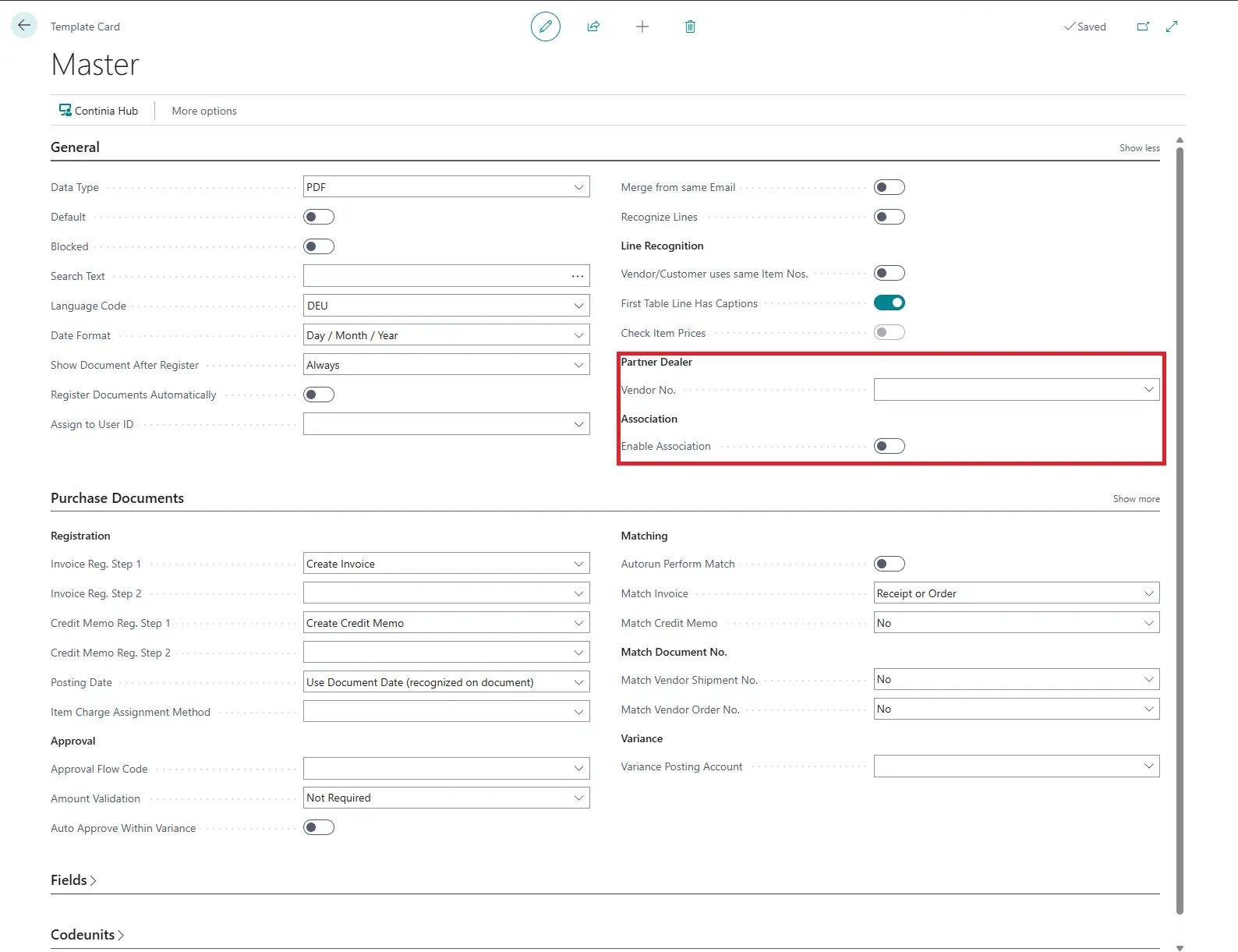
Some vendors are part of a group where multiple subsidiary vendors or customers share the same catalog. When Enable Association is turned on for a template, the system automatically searches item references across all associated vendors or customers (linked via the Pay-to Vendor No.).
For sales document templates, your administrator can also specify a fixed Vendor No. in the Partner Dealer section of the template. This tells the system which vendor's references to use when resolving item numbers.
Automatic Creation of New Items from Catalog
If a vendor sends you an invoice for an item that exists in your Catalog Items (nonstock items) but has not yet been created as a regular item, the app automatically does so:
- A new standard item is created from the catalog entry automatically.
- If an item with the same vendor and vendor item number already exists, the system links to it instead of creating a duplicate.
- The usual "item created" notification is not displayed. The process runs silently to keep your workflow uninterrupted.
Viewing Invoice Matching Differences
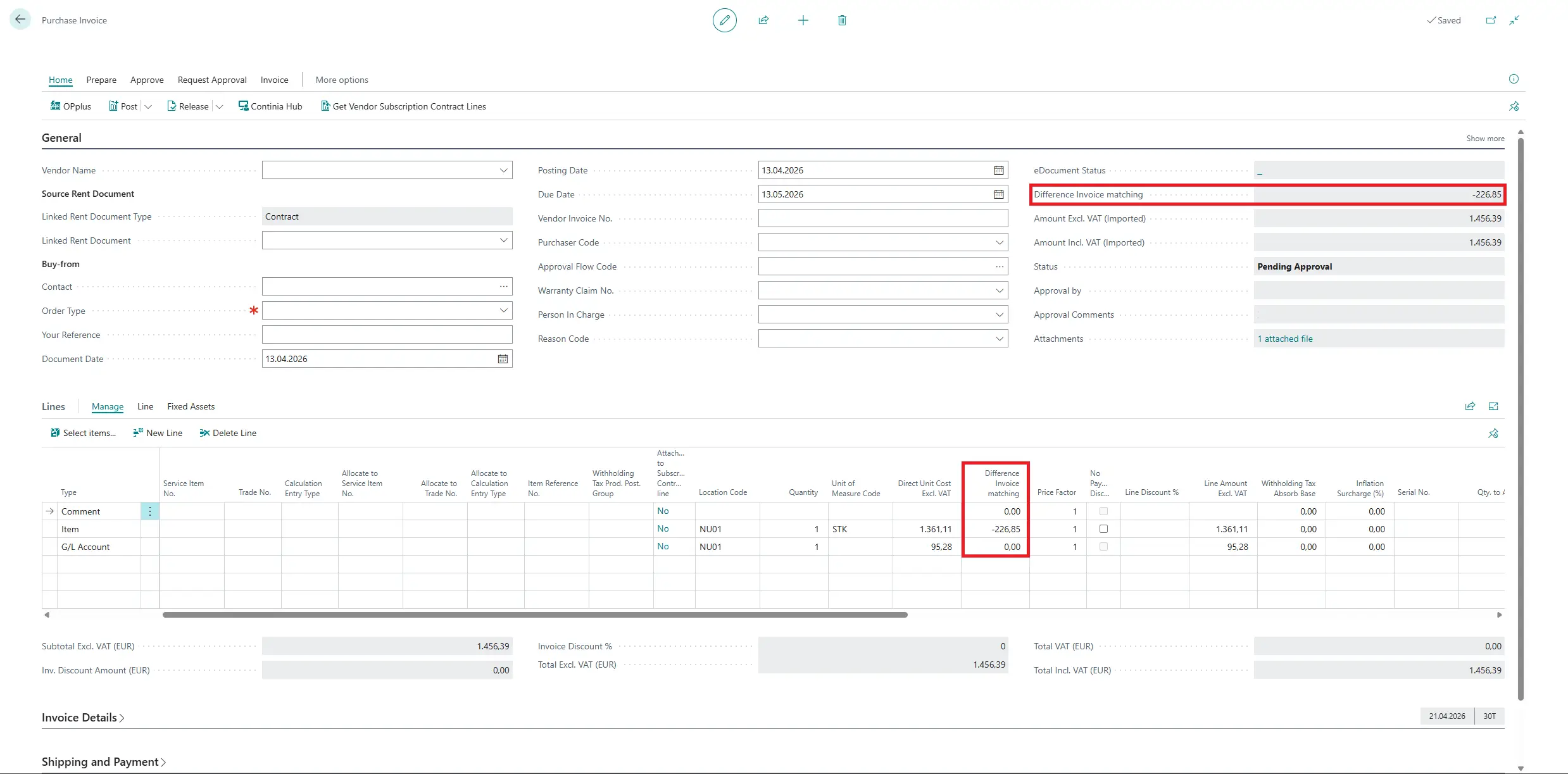
After a captured invoice is matched against a purchase order, you may want to know whether the amounts match. The app adds a Difference Invoice Matching field that shows you the monetary difference between what was captured from the vendor document and what is on the purchase order.
You can find this field on the following pages:
- Purchase Invoice and Purchase Credit Memo (header and lines)
- corresponding lists
- Posted Purchase Invoice and Posted Purchase Credit Memo (header and lines)
The field is read-only and updates automatically. A value of zero means there is no difference.