


Working with Templates
This chapter covers working with templates in Aptean Equipment DMS x Continia Document Capture. It is divided into the following sections:
- Feldwerte vom Kreditor vorbelegen
- Felder über XML-Vorlagen hinweg kopieren
- Schnellnavigation auf der Belegkarte
Pre-filling Field Values from Vendor Data
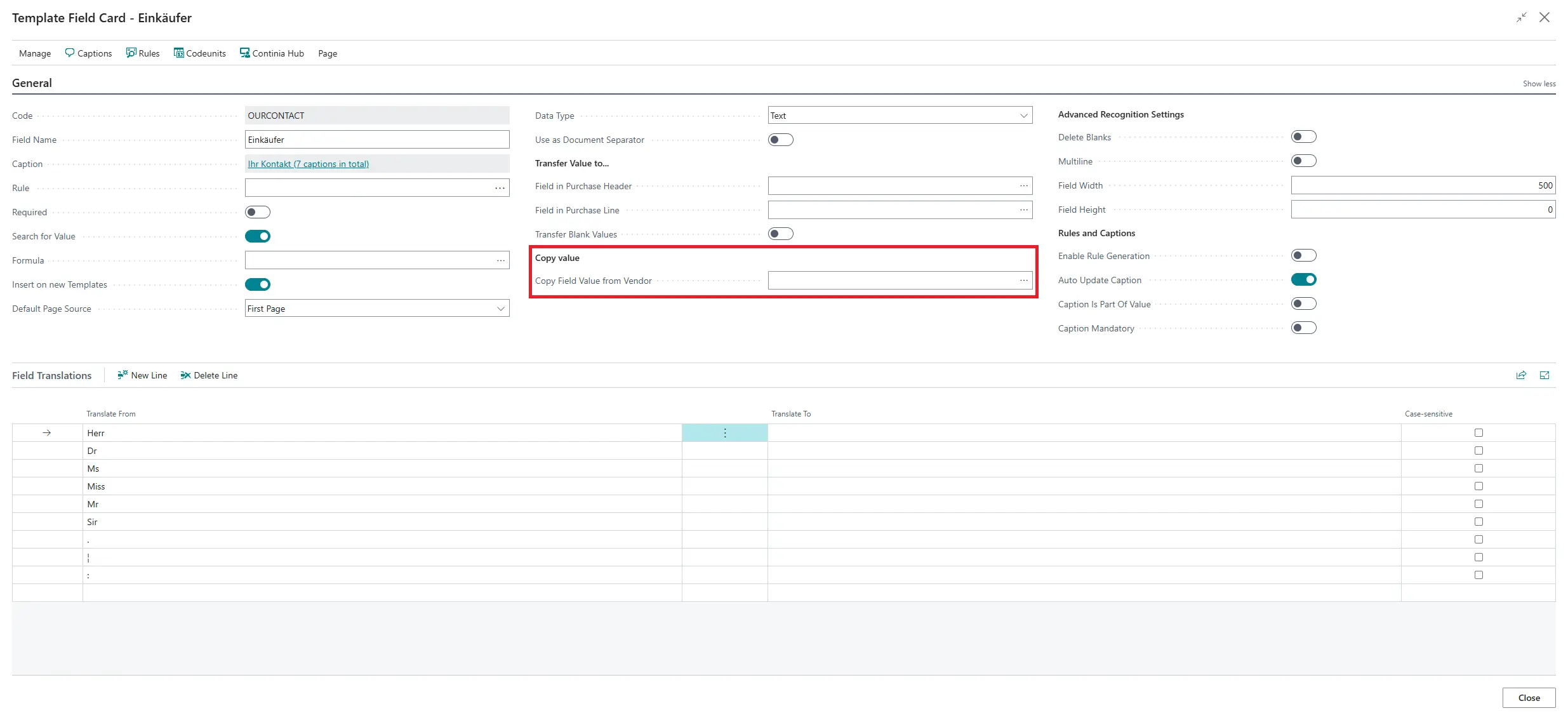
You can configure a template field to automatically copy its value from the vendor card. For example, if every document from a certain vendor should carry a specific payment term or responsibility center, you can set this up once and it will be filled in automatically during capture. Please proceed as follows to set it up:
- Open the Template Field Card for the field you want to pre-fill.
- In the Copy value section, use the lookup Copy Field Value from Vendor to choose the source field from the vendor table.
- Save your entries.
From now on, the value will be populated from the vendor card during every capture.
Copying Fields Across XML Templates
If you work with multiple XML master templates that share the same field setup, you can save time by copying a field configuration from one template to all others in one step. To do so, proceed as follows:
- Open the field list (Template Subpage) of an XML Master Template.
- Select the field you want to copy.
- Click Copy Field to all XML Master Templates and confirm.
A message displays how many templates were updated.
Quick Navigation on the Document Card
When reviewing a captured document, three shortcut actions help you navigate faster:
| Action | What it does |
|---|---|
| Master Template | Opens the master template that was used for capturing. |
| Ident. Template | Opens the identification template that recognized the document. |
| Document Category | Opens the document category card. |
These actions are displayed in the action bar on the Document Card and the Document List With Image page.