Documentation Aptean Rental x Continia Document Output
With the help of this app, the use of Continia Document Output in Aptean Rental can be optimized. It adds document output actions, FactBoxes, report selection usages, email templates, posting options, and views for rent documents. For this purpose, some functions in the area of trade-ins and purchase documents are also added, which significantly simplify the daily workflow. This chapter is divided into the following sections:
Supported Rent Pages and Documents
The Continia Document Output actions and FactBoxes are available on the following Aptean Rental pages and document contexts:
- Rent Quotes
- Rent Contracts
- Additional Contracts
- Registered Additional Contracts
- Rent Orders
- Rent Invoices
- Rent Credit Memos
- Posted Rent Deliveries
- Posted Rent Returns
- Protocols
- Sub-Rent Protocols
- Rent Break Requests
- Rent End Information
- Sub-Rent Requests
- Sub-Rent Contracts
The app adds the Document Output and CDO Log FactBoxes to supported rent pages. The Document Output FactBox shows document output actions and recipient-related information. The CDO Log FactBox shows previously processed output entries and attachments for the selected record, as well as the Email Template Code.
Merge Fields
The app includes a merge field value finder for Continia Document Output email templates. It resolves rent-related address, contract, customer, vendor, and document data used in templates. Merge fields are available for the following rent documents, as well as purchase contracts, contract termination requests, and rent event protocols:
- Rent Contracts
- Rent Break Documents
- Rent End Documents
- Rent Returns
- Rent Deliveries
- Additional Contracts
Setup
To use Aptean Rental x Continia Document Output, the following prerequisites must be met:
- Aptean Rental is installed and set up.
- Continia Document Output is installed, licensed, and configured.
You must then assign the TSRRDO Permissions permission set, which is displayed as Rental x CDO Permissions in the user interface, to all users who should use the rental functions for Continia Document Output. Users also need the appropriate permissions for Aptean Rental and Continia Document Output. These permissions are defined by the respective products and are not replaced by this app.
Setting up Report Selection
The app adds the Rental usage group to the CDO Report Selection Usage page. The following reports are available for template assignment:
- Rent Quote
- Rent Contract
- Rent Add. Contract
- Rent Invoice
- Rent Credit Memo
- Rent Posted Delivery
- Rent Posted Return
- Rent GTC
- Rent Reg. Add. Contract
- Sub-Rent Request
- Rent Break Document
- Rent Break Vendor Document
- Rent End Document
- Rent End Vendor Document
- Sub-Rent Order
- Sub-Rent Posted Receive
- Sub-Rent Posted Return
- Rent Transfer Order
To set up the report selection, proceed as follows:
- Open the CDO Report Selection Usage page.
- Select the Rental usage group.
- Verify that each rent document type is linked to the correct report and email template.
You have successfully configured the report selection.
Setting up Batch Posting
The app extends batch posting in Aptean Rental with two additional posting options in the Batch Post Rent Orders report. To use this, the function must first be set up on the Rent Setup page. To do so, proceed as follows:
- Open the Rent Setup page.
- Set the Posting Option field to Post and Send Document Output or Post and Queue Document Output if output processing should occur automatically during batch posting.
- Optional Activate the Show Confirm Post and Send field if users should confirm the notification before documents are posted and processed (this applies to both Continia Document Output posting options).
You have successfully set up batch posting with Continia Document Output.
Functions
The following sections describe the functions available when using Aptean Rental x Continia Document Output.
Continia Document Output Actions on Rent Pages
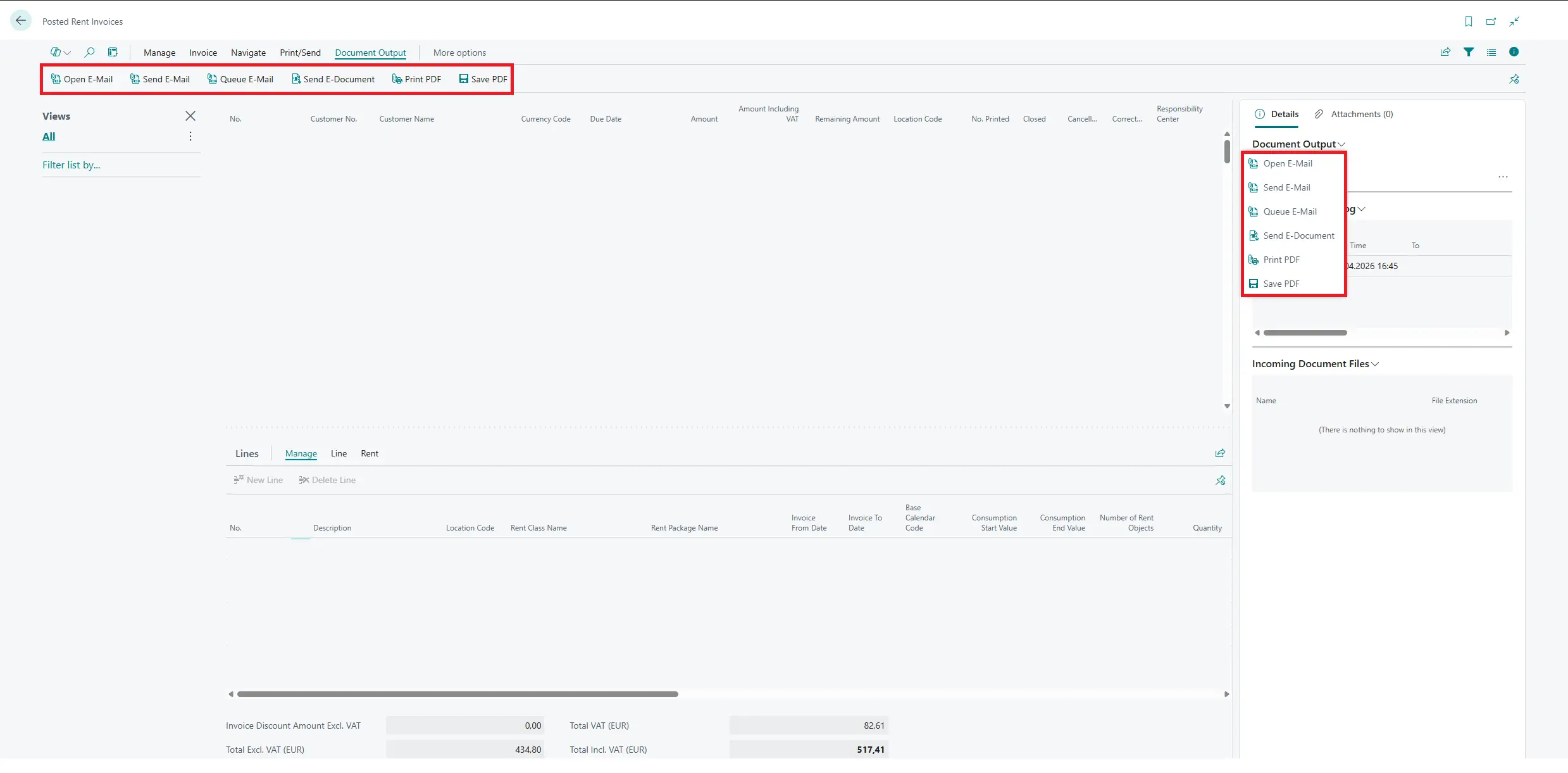
The app adds the Document Output action group to supported rent pages. These actions provide the same document output process known from other areas of Continia Document Output. The following actions are available:
| Action | Description |
|---|---|
| Open Email | This action opens the generated email so it can be reviewed before sending. |
| Send Email | This action sends the generated email directly with the generated attachments. |
| Send Email to Queue | This action passes the document to the Continia Document Output queue for later processing. |
| Send E-Document | This action sends an electronic document if this is defined in the send code. |
| Print PDF | This action prints the generated PDF file. |
| Save PDF | This action saves the generated PDF file. |
Note that not every action is available on every page. Instead, availability depends on the document context: Send E-Document is only shown on posted pages and document pages (e.g., posted invoices, credit memos, deliveries, returns, protocols, and purchase documents), while the email and PDF actions are available on open rent documents. Some pages also add context-specific actions, for example Retract Contract on the rent contract.
Importing Email Templates
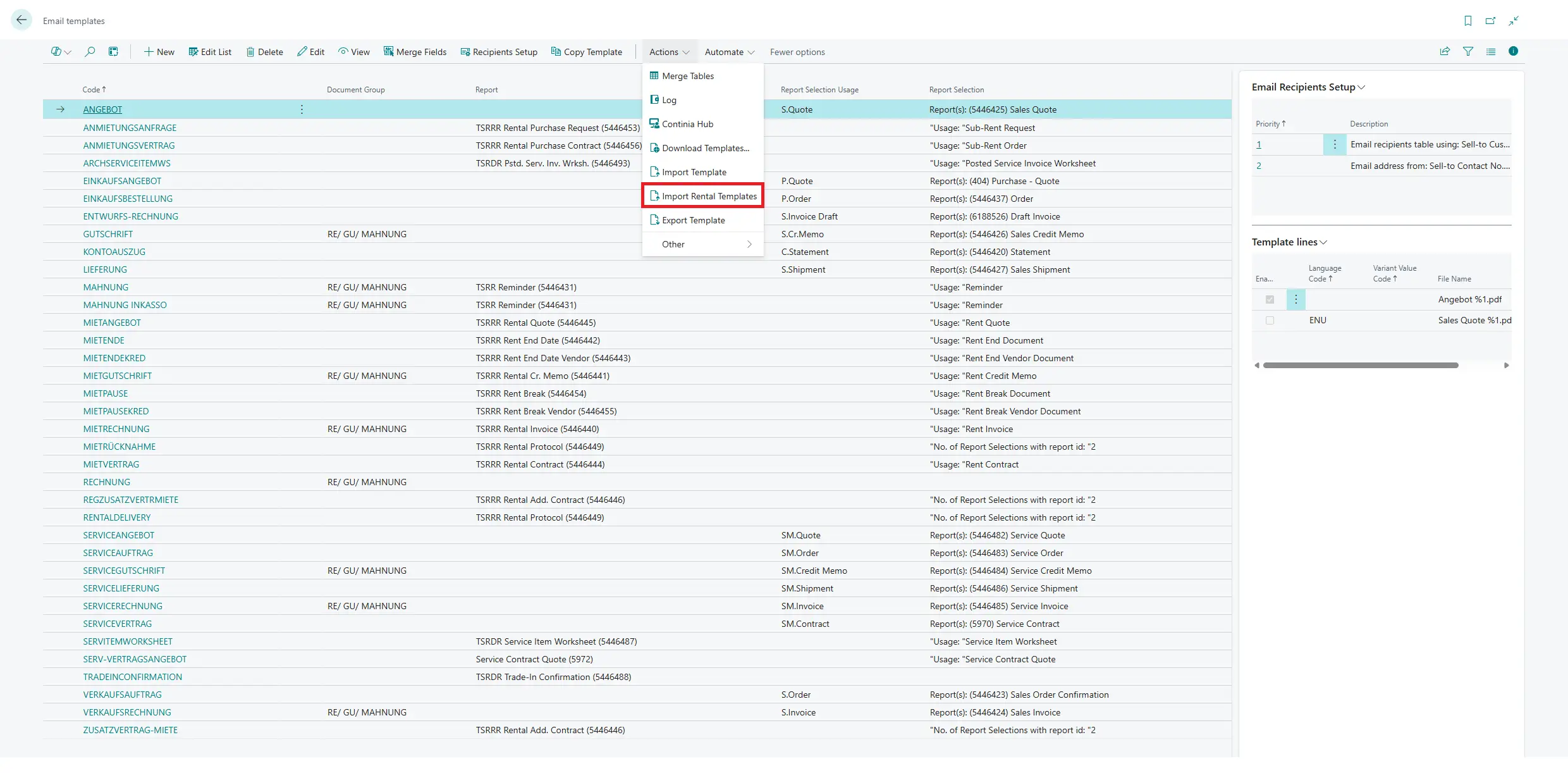
The app ships pre-configured Continia Document Output email templates for rent documents. The templates are imported from the Email Templates page using the Import Rental Templates action. Proceed as follows to import an email template:
- Open the CDO Email Templates page.
- Select Import Rental Templates in the processing actions.
- Review the import worksheet.
- Confirm the import to create the templates.
You have successfully imported an email template. During import, the system selects the German or English template file based on the company's country code and opens the import worksheet for review before the templates are created.
Posting and Sending Rent Orders
You can use the app to post and send rent orders. To do so, proceed as follows:
- Open the Rent Order page.
- Select Post and Send/Print in the Document Output action group.
- The system posts the order and then starts processing in Continia Document Output for the resulting posted document, e.g., an invoice, delivery, or credit memo.
More on the related posting options can be found in the Batch Posting section.
Sending Rent Documents
You can use the app to send rent documents as an email or PDF. To do so, proceed as follows:
- Open a supported rent page, for example Rent Contract or Rent Invoice.
- Check the recipient information in the Document Output FactBox.
- Select the applicable action:
| Action | Description |
|---|---|
| Open Email | Use this action to review the email before sending. |
| Send Email | Use this action to send the email directly. |
| Send Email to Queue | Use this action to process the output later via the Continia Document Output queue. |
| Print PDF or Save PDF | Use this action to create a PDF output. |
Note
If the recipient value is empty or no valid recipient was found, check the customer, vendor, and recipient setup in Continia Document Output before sending.
You have successfully sent a rent document as an email or PDF.
Running Batch Posting
After setting up batch posting with Continia Document Output, two additional posting options are available in the Batch Post Rent Orders report:
- Post and Send Document Output posts the rent document and sends the resulting invoice or credit memo directly via Continia Document Output.
- Post and Queue Document Output posts the rent document and places the output in the Continia Document Output queue for later processing.
When either posting option is used, the system can show a confirmation dialog indicating that the email text cannot be edited manually before sending. The dialog is only shown if the Show Confirm Post and Send field is enabled on the Rent Setup page. Proceed as follows to run a batch posting with Continia Document Output:
- Run the Batch Post Rent Orders report.
- Select Post and Send Document Output or Post and Queue Document Output as the posting option.
You have successfully run a batch posting with Continia Document Output. The selected rent orders are then posted, and the resulting documents are automatically sent or placed in the queue.
Unhandled Rental Documents
The app adds the Unhandled Rent Documents cue group, which is included, e.g., in the role center.
- Posted Rent Invoices opens the list of posted rent invoices that have not yet been processed via Continia Document Output.
- Posted Rent Credit Memos opens the list of posted rent credit memos that have not yet been processed via Continia Document Output.
The dedicated Unhandled Posted Rent Invoices and Unhandled Posted Rent Credit Memos pages provide the full range of actions for Continia Document Output. Once a document has been processed, it is marked as processed and removed from the list of unprocessed documents. Proceed as follows to process an unhandled rent document:
- Open the CDO Unhandled page.
- Use Posted Rent Invoices or Posted Rent Credit Memos in the Unhandled Rental Documents cue group.
- Process the document with Open Email, Send Email, Send Email to Queue, Print PDF, or Save PDF. More information on these actions can be found in the Continia Document Output Actions on Rent Pages section.
You have successfully processed an unhandled rent document. Once processed, the document is marked as processed and removed from the list.