Documentation Aptean Equipment DMS x Continia Document Output
Aptean Equipment DMS x Continia Document Output connects our ERP solution with Continia Document Output and allows you to send, print, or save business documents directly from the familiar pages. For this purpose, several features have been added for trade-ins and purchase documents, which significantly simplify daily workflows. This chapter is divided into the following sections:
- Introduction
- Trade-Ins
- Warehouse Shipments
- Service Worksheets
- Archived Worksheets in Service Invoices
- Attaching Checklists to service documents
- Aptean Equipment DMS Email Template Import
Introduction
With Aptean Equipment DMS x Continia Document Output, you can:
- process trade-ins, posted trade-ins and posted trade-in receipts via Continia Document Output.
- post warehouse shipments and simultaneously print the receipt or send it via email via Continia Document Output.
- automatically attach archived worksheets as attachments to posted service invoices via Continia Document Output.
- send archived worksheets directly to the customer from the posted service invoice via Continia Document Output.
- process worksheets directly via Continia Document Output.
- attach checklists to service documents via Continia Document Output.
- import predefined email templates into our ERP solution.
Trade-Ins
The trade-in module in our ERP solution manages the purchase and processing of used machinery and vehicles. This app provides comprehensive Continia Document Output support for the trade-in workflow and is available on the following pages and cards:
- Trade-Ins
- Posted Trade-Ins
- Posted Trade-In Receipts
The Continia Document Output FactBox on the right side of the trade-in list displays the following information:
| Field | Description |
|---|---|
| Confirmation Recipient | This field shows the recipient specified for the confirmation. |
| Return Recipient | This field shows the recipient of the return receipt. |
| Sales Credit Memo Recipient | This field shows the recipient of the sales credit memo. |
In addition, the following actions are available:
| Action | Description |
|---|---|
| Open Email | This action opens the email editor with the trade-in as an attachment. |
| Send Email | This action immediately sends the trade-in as an email. |
| Send Email to Queue | This action sends the trade-in as an email to the queue. |
| Print PDF | This action prints the trade-in as a PDF. |
| Save PDF | This action saves the trade-in as a PDF. |
| Post and Print | This action posts the trade-in and prints the return receipt or sales credit memo. |
| Post and Send | This action posts the trade-in and sends the return receipt or sales credit memo. |
Warehouse Shipments
When posting warehouse shipments using the Microsoft Dynamics Business Central inventory module, you can now send or print the delivery note directly from the warehouse shipments page. The functions are available on the following pages and cards:
- Warehouse Shipments
- Posted Warehouse Shipments
The Continia Document Output FactBox on the right side of the warehouse shipment list displays the following information:
| Field | Description |
|---|---|
| Recipient | This field displays the email address specified directly in the warehouse shipment (email template for warehouse shipments). |
| Recipient | This field displays the email address from the linked sales order/purchase order (email template for receipts). |
In addition, the following actions are available:
| Action | Description |
|---|---|
| Open Email | This action opens the email editor with the receipt as an attachment. |
| Send Email | This action immediately sends the receipt as an email. |
| Print PDF | This action prints the receipt as a PDF. |
| Save PDF | This action saves the receipt as a PDF. |
| Post and Print | This action posts the warehouse shipment and prints the receipt (only on the warehouse shipment). |
| Post and Send | This action posts the warehouse shipment and sends the receipt (only on the warehouse shipment). |
Note
If the Direct Print Dialog option is activated in the Continia Document Output setup, the Post and Print action opens a printer selection dialog instead of sending the document to the print queue.
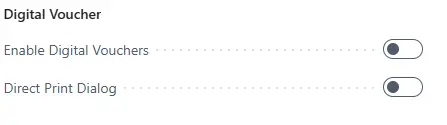
The warehouse shipment is linked to the related sales order. When you use a Continia Document Output function, the app automatically identifies the corresponding sales receipt and uses it as the source for the email or print. This ensures that the document your customer receives matches exactly the document posted in the sales module.
Service Worksheets
Worksheets are used in our ERP solution to document the service work performed on a service item (machine or vehicle). This app adds the following Continia Document Output functions to worksheets, allowing you to send the documentation directly to the customer:
| Action | Description |
|---|---|
| Open Email | This action opens the email editor with the worksheet as an attachment. |
| Send Email | This action immediately sends the worksheet as an email. |
| Send Email to Queue | This action sends the worksheet as an email to the queue. |
| Print PDF | This action saves the worksheet as a PDF. |
| Save PDF | This action saves the worksheet as a PDF. |
In addition, the Continia Document Output FactBox on the right side of the worksheet shows the Worksheet Recipient.
Archived Worksheets in Service Invoices
When a service order is invoiced, our ERP solution archives the corresponding worksheets. This app allows you to attach these archived worksheets as PDF attachments when the posted service invoice is sent via Continia Document Output. In addition, the Continia Document Output FactBox for the posted service invoice shows the Worksheet Recipient field, so you can verify the recipient at a glance.
Customer Setup
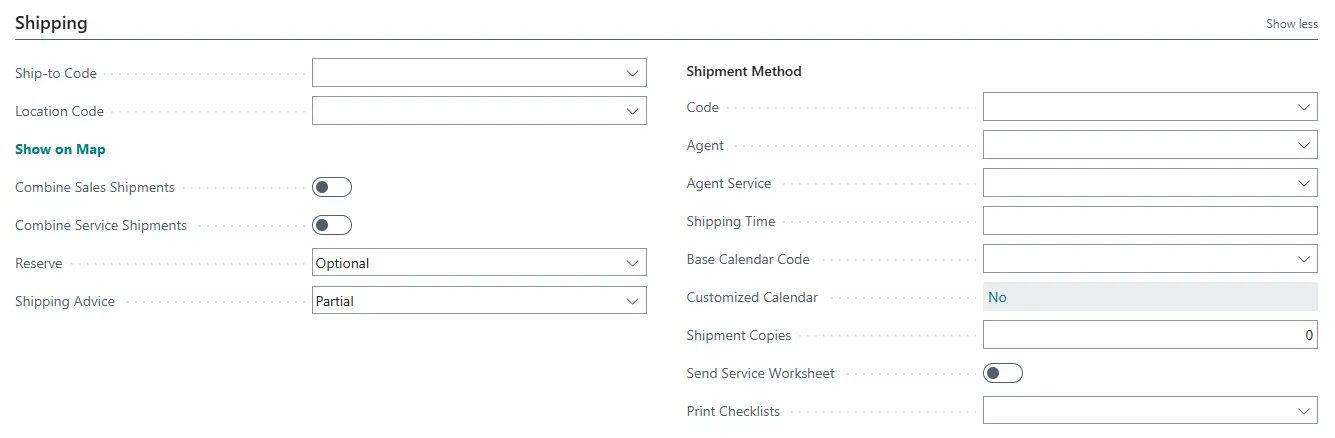
To automatically attach the archived worksheets when sending a service invoice, you must first activate this function on the corresponding customer card. To do so, proceed as follows:
- Use the quick search (ALT+Q) to find the Customers page.
- Open the customer card of the relevant customer.
- Navigate to the Shipping FastTab.
- Activate the Send Service Worksheet toggle switch.
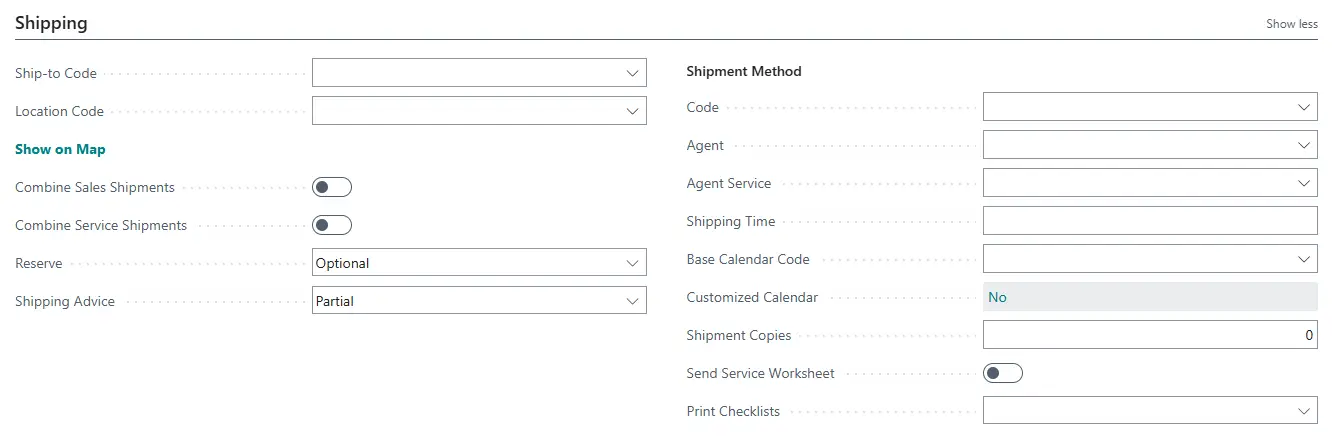
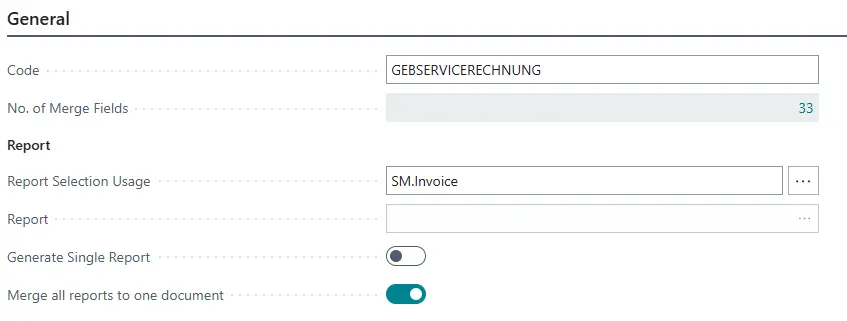
If this setting is activated, the archived worksheets are automatically generated as PDFs and attached to the outgoing email via Continia Document Output when a service invoice is processed. If the Merge all reports to one document option is activated in the Continia Document Output email template for service invoices, all individual worksheets for the invoice are combined into a single PDF. Otherwise, each worksheet is attached as a separate file.
Manual Actions in Posted Service Invoices
With Continia Document Output, you can also manually process the archived worksheets in the lines of the posted service invoice. The following actions are available:
| Action | Description |
|---|---|
| Open Archived Worksheet Email | This action opens the email editor with the archived worksheet as an attachment. |
| Send Archived Worksheet | This action immediately sends the archived worksheet as an email. |
| Send Archived Worksheet to Queue | This action sends the archived worksheet as an email to the queue. |
| Print Archived Worksheet PDF | This action prints the archived worksheet as a PDF. |
| Save Archived Worksheet PDF | This action saves the archived worksheet as a PDF. |

Attaching Checklists to service documents
With this feature, the user can attach checklists to posted service invoices, posted service credit memos, or worksheets when sending them via Continia Document Output. For this purpose, the Print Checklists field on the customer card is used to specify which checklists are automatically attached to a document when it is sent via Continia Document Output.
Note
To use this function, an Email Template for checklists must exist. On the Email Template Card, it is necessary that the Report ID field is set to a valid report for checklists and the First Table in Report field is set to the checklist table ID. In addition, an Enabled line must exist in the Email Template Lines FastTab.
| Option | Description |
|---|---|
| Empty | No checklists are selected or attached. |
| Only Completed | Only completed corresponding checklists are selected and attached. |
| All | All corresponding checklists are selected and attached. |
If the Merge all reports to one document option is activated in the Continia Document Output email template for the respective document, all created documents are combined into a single PDF. Otherwise, the checklist is attached as a separate file.
Aptean Equipment DMS Email Template Import
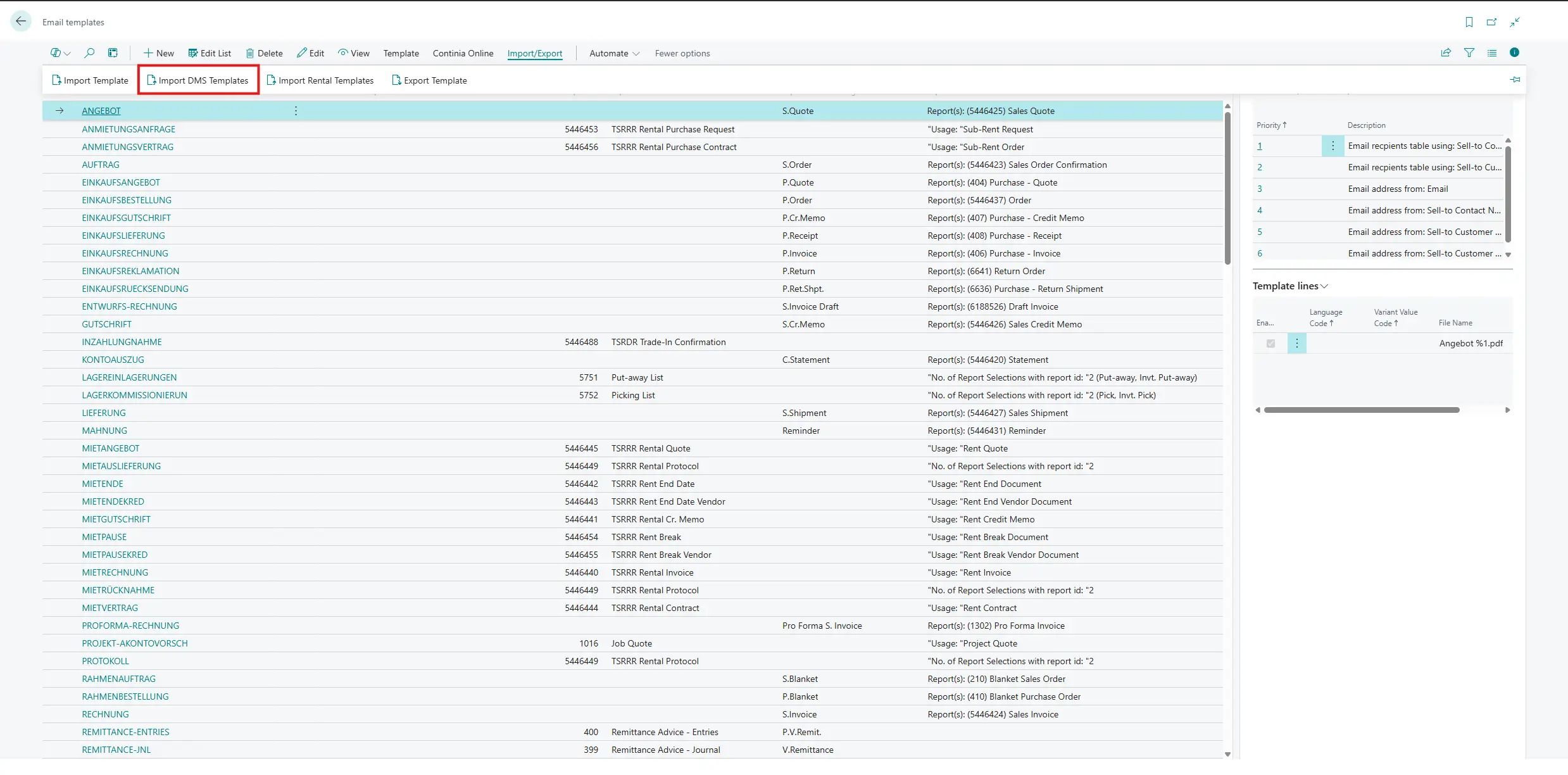
On the Email Templates page, you can import Aptean Equipment DMS email templates using the Import DMS Templates action without having to search for or create the template files yourself. The following templates are provided:
- Archived Service Worksheet
- Trade-In
- Activity Report